QMC to MP3 Converter
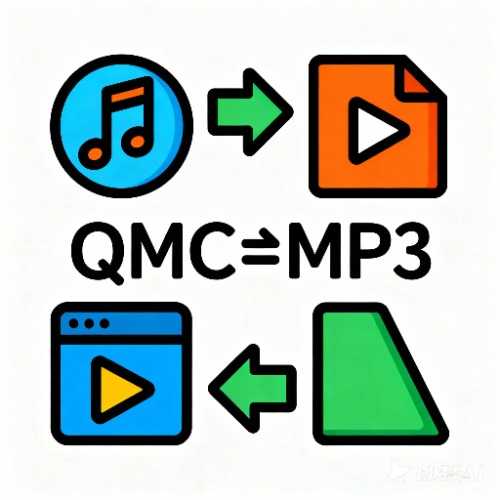
Convert QQ Music QMC encrypted formats to MP3/FLAC/OGG, supporting formats such as qmc0, qmc3, qmcflac, mflac, and mgg
Browser execution mode: Your data is processed in your browser and is not uploaded to the server.
Speed and Stability: Processing speed depends on your device and browser. For large batch work, the desktop version may be more stable.
Loading tool, please wait...
If the online tool fails to load or run, try the desktop tool.https://tools.yikeaigc.com/

Tool Usage
Return to old versionOutput & Detection
Keep auto-detect on. The tool will fix extensions based on the real audio header.
Supported Formats
Encryption may vary by platform and version. The tool will show the status in the results.
Save common settings before converting. If keys cannot be derived for new mflac/mgg files, try batching downloaded files from the same source. Failed files are skipped; successful files can still be downloaded.
Select encrypted music
You can select multiple files. Duplicate output names will get a number after the original filename.
File Review
Only the first 20 files are shown; all selected files will be processed.
Convert & download
One successful file can be downloaded directly; multiple files will be zipped.
Results Report
Shows successes, failures, warnings, and audio previews.
Conversion History
History is saved on this device for recent processing review.
Instructions
Software Usage Instructions
- Set conversion parameters: First choose the output format, file naming method, ZIP file name, and processing chunks in “Set Parameters.” It is recommended to use “Auto-detect source audio,” so the tool can identify MP3, FLAC, OGG, M4A, or WAV based on the file header.
- Configure validation options:
- Automatically detect the real format: Correct the output extension after conversion based on the audio file header.
- Validate output audio: Check whether the conversion result is recognizable audio to reduce invalid files.
- Compress ZIP: Use compression mode when packaging batch results for download.
- Keep unrecognized results: For experimental processing; still allows results to be downloaded when validation fails.
- Select encrypted music files: Go to the “Select Files” step, then click the upload area or drag and drop files. Formats such as qmc0, qmc2, qmc3, qmcflac, qmcogg, mflac, mflac0, mgg, mgg0, mgg1, tkm, ncm, and more are supported.
- Check the file list: When selecting files in batches, the page only displays the first 20 files, and the remaining files are indicated by count. After processing starts, all selected files will be included.
- Start conversion: Go to the “Convert & Download” step and click “Start Conversion.” You can cancel during processing, and completed results will be retained.
- Preview and download: A single successful file can be downloaded directly; multiple successful files will be automatically packaged into a ZIP. File names use the original file names by default, and if duplicate names occur, a number will be added after the file name to distinguish them.
- Save settings: Click “Save Settings” to save frequently used parameters. They will be applied automatically the next time you open the tool.