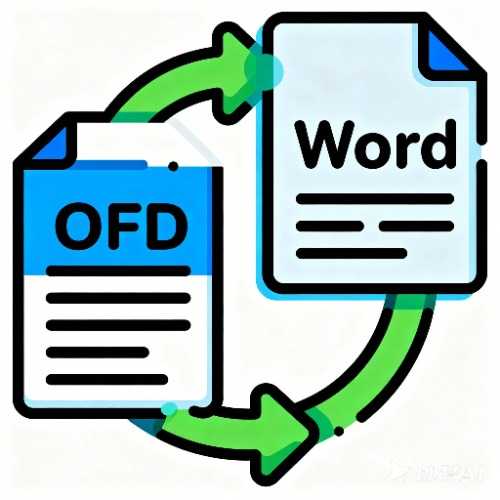
OFD to Word Converter
Convert OFD files online into editable Word documents, with accurate preservation of the original layout, text, images, and table lines.
Browser execution mode: Your data is processed in your browser and is not uploaded to the server.
Speed and Stability: Processing speed depends on your device and browser. For large batch work, the desktop version may be more stable.
Loading tool, please wait...
If the online tool fails to load or run, try the desktop tool.https://tools.yikeaigc.com/
Tool Usage
Return to old versionSelect OFD files
Drag and drop files or select in batch. Only the first 20 files are shown, but all files will be converted.
Set conversion options
Choose a conversion mode before processing. Exact layout is best for e-invoices, official documents, and table-based OFD files.
Create Word document
Confirm the conversion mode and quality before processing; batch files will all be converted and downloaded as a package.
| # | Original file | Output file | Pages | Status |
|---|
Instructions
Software Usage Instructions
- Select OFD files: Click the “Select OFD Files” button to choose the OFD documents you need to convert; you can also drag files in. Selecting multiple OFD files at once is supported.
- View the file queue: When multiple files are selected, the page will display the first 20 files, while the remaining files will be indicated with a text notice and converted together during processing.
- Set the conversion mode:
- Accurate restoration: Extracts text, images, and lines, suitable for electronic invoices, official documents, and form-based OFD files.
- Plain text: Extracts text in reading order, suitable for later editing and content organization.
- Image mode: Renders pages as images and embeds them into Word, suitable for preserving the layout appearance.
- Adjust parameters: You can set image rendering quality, preview page count, output file naming rules, and text formatting options; for commonly used parameters, click “Save Settings”.
- Start processing: After entering the generate/download step, click “Start Processing” and wait for the progress to complete.
- Download results: A single file will generate a DOCX download button; multiple files will generate a ZIP download button. Output file names default to the original file names, and numbers are automatically appended when names conflict.