Automatic Audio Gap Trimming Tool
Automatically detect and remove silence segments and breath gaps in audio, with batch processing support for multiple audio formats
Loading tool, please wait...
If the online tool fails to load or run, try the desktop tool.https://tools.yikeaigc.com/
Tool Usage
Return to old version
A desktop version is available with more powerful, stable features.
Open desktop version
Windows 10/11 only
Auto Audio Breath Gap Trimmer(Software Version)
Audio silence detection and auto trimming require significant computing resources. For a more stable and efficient experience, this feature is available only in the Windows desktop client.
Automatically detect and remove silent parts in audio
Supports batch processing of multiple audio formats
Custom silence threshold and keep duration
Local processing for privacy and security
Click to go to the software download page
Instructions
Software Usage Instructions
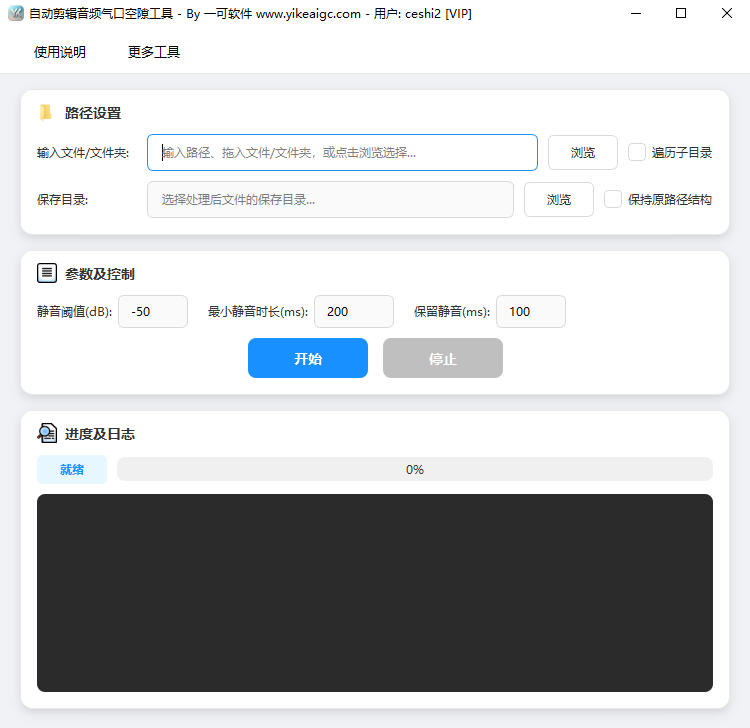
- Select input files/folder:
- You can enter the path directly in the input box
- Click the "Browse" button to select a file or folder
- Drag and drop files or folders into the input box
- Select multiple audio files for processing at the same time
- Traverse subdirectories: When checked, audio files in the selected folder and all its subfolders will be processed. If unchecked, only files in the current folder will be processed.
- Select save directory: Click the "Browse" button to select the output directory. Processed files will be saved to this directory.
- Keep original path structure: Available only when "Traverse subdirectories" is checked. When checked, the original directory structure will be preserved in the output directory.
- Parameter settings:
- Silence threshold (dB): Audio below this value is considered silence. A setting between -40 and -30 is recommended
- Minimum silence duration (ms): Continuous silence longer than this duration will be removed. Adjust as needed
- Keep silence (ms): The amount of edge silence retained when removing silence, to avoid overly abrupt cuts
- Supported audio formats: MP3, WAV, FLAC, AAC, OGG, M4A, WMA, AIFF, OPUS, WEBM, AMR, AC3, etc.
- Start processing: Click the "Start" button to begin processing. During processing, you can click the "Stop" button to interrupt the operation.
FAQ
A: The silence threshold is recommended to be set between -50dB and -30dB. If the recording environment is relatively quiet, you can set it to -50dB; if there is some background noise, -35dB to -30dB is recommended. The higher the value (the closer to 0), the larger the range that will be judged as silence.
A: Minimum silence duration refers to how long continuous silence must last before it is detected and removed; silence shorter than this duration will be kept. Keep silence refers to retaining a small amount of time before and after each silence segment when removing it, to avoid abrupt cuts and make audio transitions more natural.
A: The tool uses the professional FFmpeg engine for audio processing and tries to preserve the original audio quality when removing silent segments. For lossless formats (such as WAV and FLAC), the output remains lossless; for lossy formats (such as MP3), it is re-encoded using the original parameters, with negligible quality loss.
A: If no silent segments meeting the criteria are detected in the audio, the tool will directly copy the original file to the output directory. This may be because: 1) the audio itself has no obvious silent segments; 2) the silence threshold is set too low and needs to be raised appropriately; 3) the minimum silence duration is set too long and needs to be shortened appropriately.
A: The tool supports batch processing and theoretically has no quantity limit. However, it is recommended to arrange tasks reasonably based on your computer configuration. If there are many files or individual files are large, process them in batches to ensure stability. You can click the "Stop" button at any time during processing to interrupt the operation.
A: It is suitable for various audio post-production scenarios, including podcast editing, audiobook production, voice-over post-processing, meeting recording organization, online course video audio optimization, and self-media audio content production. It can quickly remove pauses, breaths, and blank sections from recordings, making audio content more compact.
A: Audio silence detection consumes a certain amount of CPU and memory resources. Recommendations: 1) close other resource-intensive programs; 2) process large numbers of files in batches; 3) keep individual files under 500MB; 4) if you often process large files, consider upgrading your computer configuration.
Related Tools
Audio and Video Duration Filter Tool
Batch analyze the duration information of audio and video...
Audio Fingerprint Duplicate Checker
Using voiceprint fingerprint comparison, automatically fi...
Audio Left and Right Channel Balance Adjustment Tool
Adjust the left and right audio channel balance online, w...
Batch Audio Volume Adjustment Tool
Increase, decrease, and normalize audio volume online. Su...