Audio Quality Inspection Report Tool
Batch-check audio sample rate, clipping, pops, silence, loudness, signal-to-noise ratio, and more, and generate Excel/CSV quality inspection reports with one click.
Loading tool, please wait...
If the online tool fails to load or run, try the desktop tool.https://tools.yikeaigc.com/
Tool Usage
Return to old version
A desktop version is available with more powerful, stable features.
Open desktop version
Windows 10/11 only
Audio Quality Check Report Tool(Software Version)
Audio decoding and acoustic metric calculation require significant computing resources. To provide a more stable and efficient batch checking experience, this feature is available only in the Windows desktop client.
Batch check sample rate, clipping, pops, silence, and more
Calculate LUFS loudness, SNR, dynamic range, and more
Export Excel / CSV QC summary reports in one click
Low-overhead streaming analysis, processed locally
Click to go to the software download page
Instructions
Software Usage Instructions
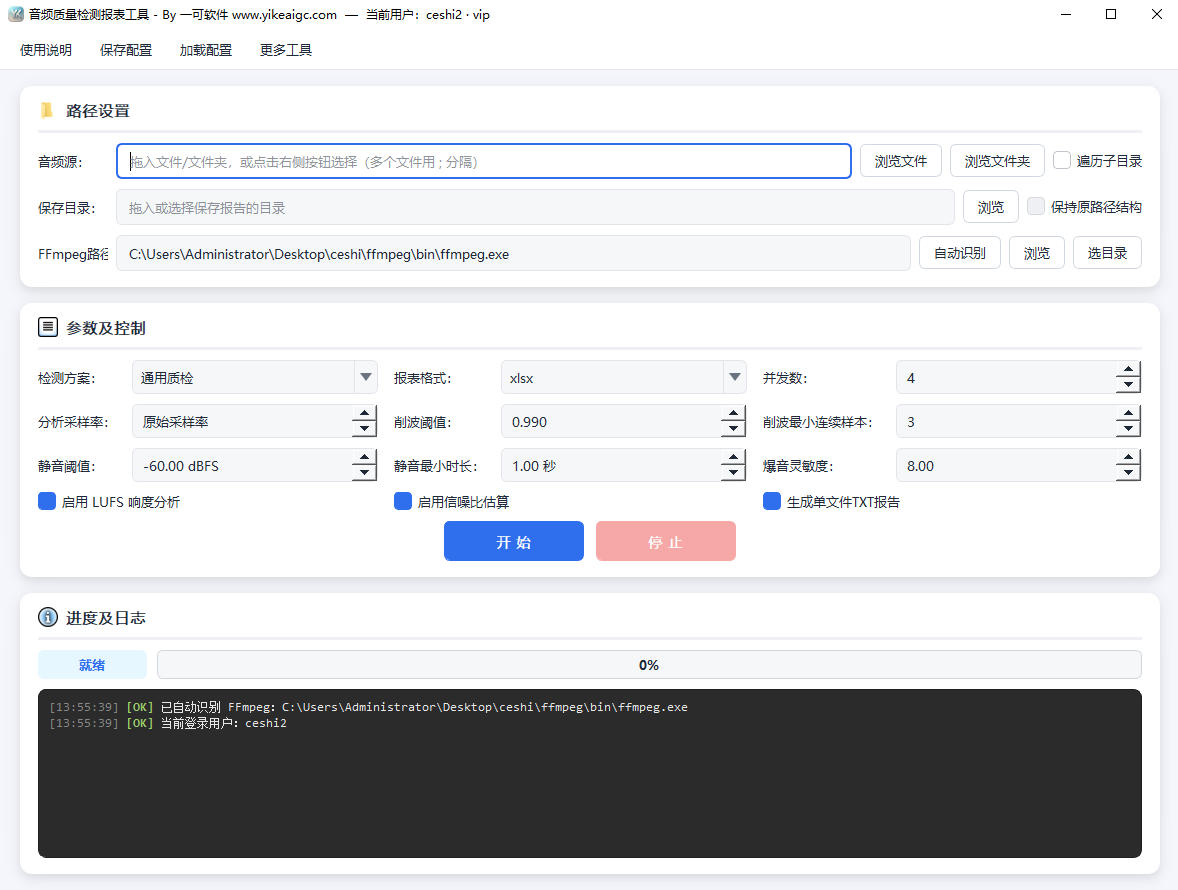
- Select audio files or folders: Manually enter the path in the "Audio Source" input box, or click the "Browse Files" or "Browse Folder" button to select one. You can also drag and drop a single file, multiple files, or an entire folder directly into the input box. Mainstream formats such as mp3, wav, flac, aac, m4a, ogg, opus, wma, aiff, ape, and alac are supported.
- Set the scan scope: Selecting "Traverse Subdirectories" will scan all levels under the selected folder; if not selected, only the first level of the current folder will be scanned.
- Select the save directory: Set the output location for detection reports. Manual input and drag-and-drop are supported. After selecting "Keep Original Path Structure", single-file reports will be output according to the source directory hierarchy, making them easy to match one by one.
- Select a detection scheme:
- General QC: Suitable for routine checks of everyday audio
- Voice/Podcast: Thresholds optimized for vocal content
- Music/Mastering: Stricter thresholds for finished music products
- Platform Publishing: Loudness and clipping thresholds aligned with publishing platform requirements
- Configure detection parameters:
- Analysis sample rate: Resample uniformly to this value during analysis; 0 means using the original file sample rate
- Clipping threshold and minimum consecutive samples: Control the sensitivity of clipping detection to avoid false positives from single points
- Silence threshold and minimum duration: Set the criteria for determining silent sections
- Pop sensitivity: Differential z-score threshold; the lower the value, the higher the sensitivity
- Report format: Choose xlsx, csv, or output both
- Concurrency: Number of files analyzed simultaneously; it is recommended to set it to half the number of CPU cores
- Start detection: Click "Start" to begin batch processing. The progress bar will display the percentage in real time, and the log panel on the right will show recent processing records. Click "Stop" to interrupt the current task if needed.
- View reports: After completion, the save directory will contain a single-file report for each audio file, as well as an Excel/CSV summary report colored by issue severity, making it easy to prioritize problematic files.
Frequently Asked Questions
A: It can detect basic information such as sample rate, channels, bit depth, bitrate, and encoding format, as well as metrics including clipping count, pop count, silent sections, peak and true peak, RMS, crest factor, integrated loudness LUFS, loudness range LRA, DC offset, estimated signal-to-noise ratio, and estimated dynamic range. It also provides issue severity levels and an overall quality score.
A: General QC is suitable for routine checks; Voice/Podcast adjusts silence and loudness thresholds for vocal content; Music/Mastering uses stricter clipping and silence detection; Platform Publishing aligns with publishing platform requirements for loudness and clipping. After applying a preset, you can still manually fine-tune each parameter.
A: Export to both xlsx and csv formats is supported, and you can output both at the same time. The Excel summary report is color-coded by issue level and includes a statistics worksheet. A separate txt detection report can also be generated for each audio file; when there are many files, you can disable individual reports and keep only the summary table.
A: The minimum consecutive samples for clipping means that clipping is counted only when the number of consecutive samples exceeding the threshold reaches this value. Increasing it can reduce false positives from single-point spikes. Pop sensitivity is the differential z-score threshold; the lower the value, the more sensitive it is. It is recommended to start with a preset detection scheme, then fine-tune it based on the results.
A: The tool uses streaming analysis and does not load the entire audio file at once, so memory usage is low. When processing large batches of files, it is recommended to close other resource-intensive programs and set the concurrency to about half the number of CPU cores to balance speed and stability.
A: The tool will first try to automatically detect ffmpeg in the root directory. If it is not detected, click "Auto Detect" to search again, or manually select ffmpeg.exe, the bin folder, or the program root directory. Make sure ffmpeg.exe and ffprobe.exe are in the same directory.
A: The tool comprehensively determines the issue level (Normal, Warning, Severe) and calculates the quality score based on clipping, pops, silence ratio, loudness deviation, sample rate diagnostics, and other factors. A higher level and lower score indicate more prominent issues, so you can prioritize those audio files for processing.
Related Tools
Audio and Video Duration Filter Tool
Batch analyze the duration information of audio and video...
Audio Fingerprint Duplicate Checker
Using voiceprint fingerprint comparison, automatically fi...
Online Audio Distortion Effect Tool
Professional audio distortion processing, supporting four...
Audio Left and Right Channel Balance Adjustment Tool
Adjust the left and right audio channel balance online, w...