Batch Add Image Watermarks
Add a logo or graphic watermark to multiple images, with support for position, size, opacity, and tiling settings.
Browser execution mode: Your data is processed in your browser and is not uploaded to the server.
Speed and Stability: Processing speed depends on your device and browser. For large batch work, the desktop version may be more stable.
Loading tool, please wait...
If the online tool fails to load or run, try the desktop tool.https://tools.yikeaigc.com/

Tool Usage
Return to old versionMain Image0
Select or drop images to watermark
Batch selection supported; first 20 shown
Pending List
Watermark Image
Select or drop a watermark image
Transparent PNG works well for logos, signatures, and pattern watermarks
Overlay Method
Watermark Position
Appearance
Export settings
Numbers will be added to duplicate file names. All selected images will be included.
Batch processing
Please select a main image and watermark image
Instructions
Software Instructions
- Select main images: Click the “Select Images” button, or drag images into the main image area. You can select one or multiple images to add watermarks to at once. The list displays the first 20 images, and all selected images will be included during processing.
- Select watermark image: Click the “Select Watermark” button and choose a logo, signature, or custom graphic as the watermark. A transparent PNG image is recommended for easier overlay on different backgrounds.
- Set watermark parameters:
- Overlay mode: Choose a single watermark or tiled watermarks.
- Watermark position: A single watermark supports nine-grid positions, random position, and custom X/Y offset.
- Appearance settings: Adjust watermark size, opacity, rotation angle, margin, shadow, and blend mode.
- Tiling settings: Set horizontal spacing, vertical spacing, and staggered layout.
- Set export options:
- Output format: Choose original format, JPG, PNG, or WebP.
- Image quality: Export quality can be adjusted for JPG and WebP.
- Transparent background fill: Set a background fill color when exporting as JPG.
- Long side limit: Enter the long-side pixel value to control the export size. Enter 0 to keep the original size.
- File naming: The original file name is kept by default. For files with the same name, a number will be appended to the file name.
- Preview result: After selecting images and a watermark, you can view the watermark effect on the first image in the real-time preview area.
- Load example: Click “Load Example” to quickly generate a sample main image and watermark for testing parameter effects.
- Start processing: Click the “Start Processing” button, and the program will batch-generate watermarked images using the current parameters.
- Download results: After processing is complete, click “Download ZIP” to get the packaged result files.
FAQ
Related Tools
Xiaohongshu Countdown Sale Cover Maker
Generate countdown promotional posters with one click. Su...
Image Circle Number Labeling Tool
Add numbered circle markers to images, supporting single-...
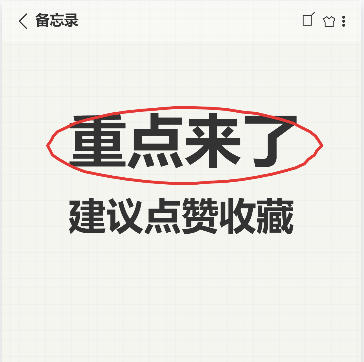
Xiaohongshu Memo-Style Cover Maker
Simulate a mobile notes interface with a grid background,...
Xiaohongshu Notebook-Style Cover Maker
Notebook Q&A-style cover, with customizable elements ...