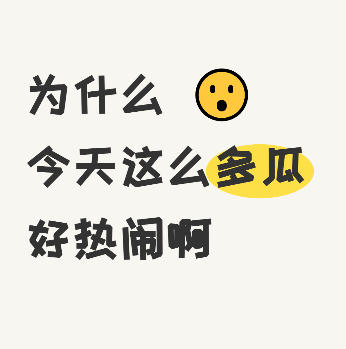
Xiaohongshu Emoji Text Cover Maker
Create handwritten-style covers with emoji and highlight markings, perfect for trending gossip, daily sharing, and other content topics.
Browser execution mode: Your data is processed in your browser and is not uploaded to the server.
Speed and Stability: Processing speed depends on your device and browser. For large batch work, the desktop version may be more stable.
Loading tool, please wait...
If the online tool fails to load or run, try the desktop tool.https://tools.yikeaigc.com/
Tool Usage
Return to old versionCanvas size
Background & Font
Top Sticker
🙋♀️
👋
🤔
😮
⭐
🔥
📢
Text content
For marking key text
Layout Settings
80px
40%
80px
Quick Examples
1242 × 1660 px
Each line is one cover. Use | to separate text lines and [text] to mark highlights.
Enter text, then click "Generate Batch Covers"
Instructions
Software Usage Instructions
- Select canvas size: Supports common sizes such as Douyin 9:16, Xiaohongshu 3:4, square, etc. You can also customize the width and height.
- Set background and font:
- Choose a background color. The default beige (#f8f6f0) creates a warm style.
- Choose a text color. The default is dark gray.
- Choose a font. ZCOOL Happy is recommended for a handwritten style, or you can upload a custom font.
- Add top stickers: Choose emoji stickers for decoration, such as a jumping girl, surprised face, stars, etc. You can adjust their size and position.
- Edit text content:
- Click the "Add Row" button to add a text row.
- Each row can have custom text content, font size, inline emoji, and emoji position.
- Enter keywords to mark in the "Highlighted Text" box, and a yellow highlight effect will be added automatically.
- Adjust layout: Set parameters such as left margin, text starting position, and line spacing.
- Batch creation: Switch to the "Batch Creation" tab. Enter one cover content per line, use | to separate different text lines, and use [text] to mark highlighted content.
- Download images: For a single image, click "Download Cover Image"; for batch images, click "Download All (ZIP)" to get a compressed package.
FAQ
A: Find the "Highlighted Text" input box in the text row settings and enter the keywords you want to highlight. For example, if the text content is "So much gossip today" and you enter "much gossip" in the highlighted text box, that phrase will automatically get a yellow oval background effect. The highlight color can be customized in the settings area.
A: Inline emoji can be added to each text row. Enter or paste an emoji directly into the "Inline Emoji" input box (such as 😮 or ✨), then choose whether the emoji appears before or after the text. The top sticker area also provides quick selection of commonly used emoji.
A: In the batch input box, use square brackets to mark the text that needs highlighting. For example, enter "So [much gossip] today|It's so lively", and "much gossip" will automatically get a highlight effect. Each line represents one cover, and | separates different text lines.
A: Select "Upload custom font" from the font selection dropdown, then click the file selection button to upload your font file. TTF, OTF, WOFF, and WOFF2 formats are supported. Font files are not uploaded to the server and are used only locally on your device.
A: This emoji text-style cover is suitable for trending gossip topics, surprising discoveries, product recommendations, everyday rants, Q&A interaction posts, and more. The handwritten style paired with emoji expressions can quickly attract users' attention and increase content click-through rates.
A: No. All image generation is completed locally on your device. The text you enter, font files you upload, and generated images will not be uploaded to the server, ensuring your data security and privacy.
Related Tools
Corrupted Image Detection and Filtering Tool
Batch check whether images are corrupted, supports multip...