Batch Audio Noise Reduction Tool
Batch remove background noise, electrical hum, and wind noise from audio, with support for dereverberation, echo removal, and vocal enhancement.
Loading tool, please wait...
If the online tool fails to load or run, try the desktop tool.https://tools.yikeaigc.com/
Tool Usage
Return to old version
A desktop version is available with more powerful, stable features.
Open desktop version
Windows 10/11 only
Batch Audio Noise Reduction Tool(Software Version)
Audio noise reduction uses spectral analysis and multi-process parallel computing, which requires significant computing resources. For a more stable and efficient batch processing experience, this feature is available only in the Windows desktop client.
Remove background noise, hum, and wind noise in one click
Batch remove reverb and echo, and enhance vocals
Multi-process parallel processing for massive file batches
Local processing; no need to upload audio files to servers
Click to go to the software download page
Instructions
Software Usage Instructions
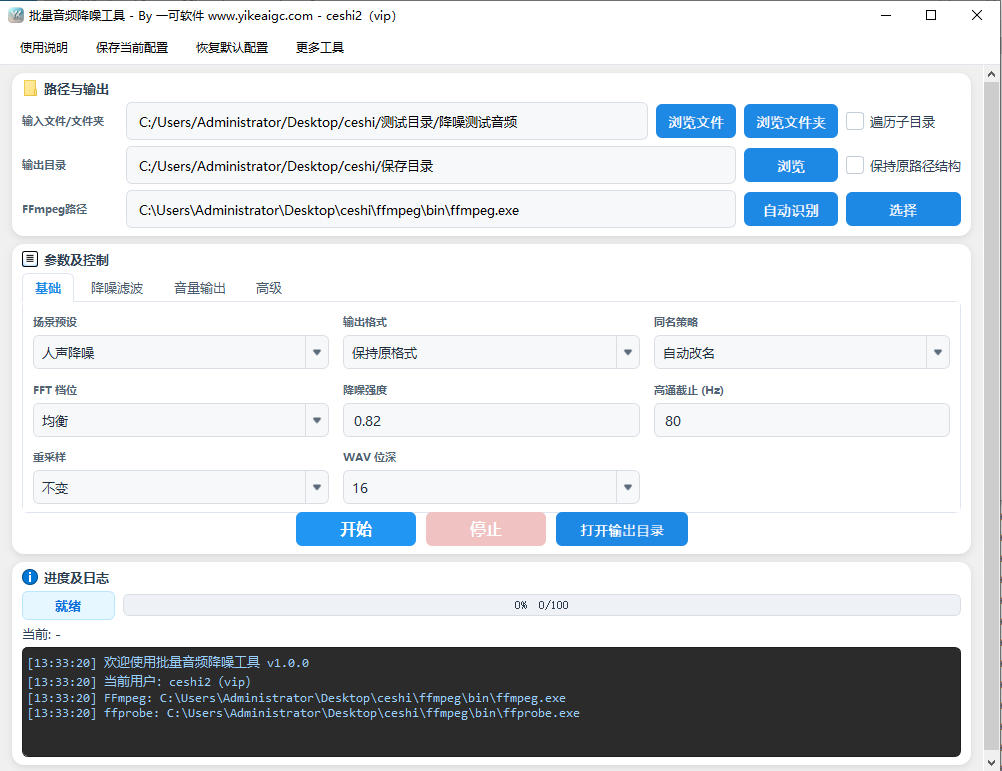
- Add audio files: Click the "Select File" or "Select Folder" button, or drag audio files or folders directly into the software window. Supports multiple formats including WAV, MP3, FLAC, M4A, AAC, OGG, OPUS, WMA, and AIFF, and can add large batches of files at once.
- Select a noise reduction preset:
- Vocal Noise Reduction: Suitable for general voice recordings, removing steady background noise
- Course Recordings / Podcast Dialogue: Optimized for lectures and conversations, balancing dereverberation and loudness
- Outdoor Interviews: Enhanced wind noise reduction, suitable for noisy outdoor environments
- Light Music Noise Reduction / Strong Repair: Used for music fidelity and heavy noise repair respectively
- Custom: Manually adjust each parameter
- Adjust processing parameters:
- Noise reduction strength: Higher values remove noise more thoroughly, but values that are too high may affect audio quality
- High-pass filter: Removes low-frequency rumble and wind noise
- Power frequency notch: Eliminates 50Hz/60Hz electrical hum, with automatic detection available
- Dereverberation: Suppresses room echo tails
- Loudness normalization: Unifies output volume to the set target loudness
- Set output format: Select an output format (such as WAV, MP3, FLAC, etc.) or "Keep original format", and specify the output directory and how to handle duplicate file names (auto rename, overwrite, skip).
- Start processing: Click the "Start Processing" button. The tool will use multi-process parallel processing to reduce noise for all files, and the progress bar will show the processing progress in real time.
- View results: After processing is complete, you can view the noise-reduced audio files in the output directory. The processing log will record the processing result for each file.
FAQ
A: It mainly targets steady-state noise, including ambient background noise, device electrical hum (50Hz/60Hz power frequency), wind noise, low-frequency rumble, etc., and also supports dereverberation and echo processing. It is more effective for continuous, stable background noise.
A: Different presets are preconfigured parameter combinations for different scenarios. For example, "Vocal Noise Reduction" focuses on cleaning up vocal background noise, "Outdoor Interviews" enhances wind noise reduction, "Light Music Noise Reduction" preserves more musical detail, and "Strong Repair" is used for heavily noisy material. If the presets do not meet your needs, you can select "Custom" to adjust each item.
A: Not necessarily. If the noise reduction strength is too high, it may remove noise but also damage useful audio details, resulting in a “watery” sound or muffled audio. It is recommended to start with a medium strength and adjust gradually based on what you hear to find a balance between noise cleanup and audio quality preservation.
A: No. All audio processing is completed on your local device. Files are not uploaded to any server, ensuring your privacy and data security, and processing is not affected by network conditions.
A: Common audio formats such as WAV, MP3, FLAC, M4A, AAC, OGG, OPUS, WMA, and AIFF are supported. When exporting, you can choose a target format for conversion or select “Keep original format.” The tool will automatically choose a stable encoding method based on compatibility.
A: Yes. The tool uses multi-process parallel processing to handle multiple files at the same time, making it suitable for batch processing large amounts of audio. Processing speed depends on the number of files, their duration, and the number of CPU cores on your device. Devices with higher specifications will process faster.
A: You can enable “loudness normalization” and set a target loudness value (such as -18 LUFS). Once enabled, the tool will adjust all files to a similar volume level, making batch-processed audio sound more consistent.
Related Tools
Batch Audio Intro and Outro Remover
Batch remove a specified duration from the beginning and ...
Batch Audio Volume Adjustment Tool
Increase, decrease, and normalize audio volume online. Su...
Online Audio Compression Ratio Adjustment Tool
An audio file compressor that supports multiple compressi...