Image Dominant Color Analysis Tool
Intelligently extract the main colors from images, supporting both average color and precise color modes. Batch analyze multiple images and generate detailed color palettes.
Browser execution mode: Your data is processed in your browser and is not uploaded to the server.
Speed and Stability: Processing speed depends on your device and browser. For large batch work, the desktop version may be more stable.
Loading tool, please wait...
If the online tool fails to load or run, try the desktop tool.https://tools.yikeaigc.com/
Tool Usage
Return to old versionAnalyze single or batch images, filter transparent pixels, copy color values, and export CSV, JSON, TXT, or ZIP files.
Analysis settings
Select a color extraction method and sampling precision before processing. Large images are scaled to the analysis size to reduce wait time.
Choose images
Drag or batch select JPG, PNG, GIF, BMP, WebP, and other images. Files are not uploaded; all processing is done on this device.
Start analysis
After confirming the settings and images, click Start. Progress updates during analysis. For large batches, download full results on the export page.
Export results
For one image, copy or download data directly. For multiple images, download the ZIP with all results.
Instructions
Software Usage Instructions
- Set analysis parameters: First choose Smart Dominant Color, Exact Color, or Hue Grouping mode, and set the number of colors to extract, analysis size, sampled pixels, and transparency threshold.
- Select image files: Click the upload area to select images, or drag and drop images onto the page. Common image formats such as JPG, PNG, GIF, BMP, and WebP are supported, and you can select multiple images in batches.
- Use sample images: To quickly preview the effect, click the sample image buttons to load examples of photo tones, poster color schemes, or interface screenshots.
- Configure result display: You can choose whether to show color proportions, RGB values, HSL values, and similar color names, and you can also filter near-white or near-black backgrounds.
- Start color analysis: Click the “Start Color Analysis” button, and the tool will read the image pixels and extract the main colors. During batch processing, the interface displays the first 20 results, while the remaining images will still be processed.
- View and copy results: After analysis is complete, you can view each image’s dominant color swatches, HEX codes, RGB/HSL values, and proportion information. Click a color swatch to copy the color code.
- Download analysis data: You can download CSV, JSON, and TXT files; during batch processing, you can download a ZIP archive containing the color analysis results for all images.
FAQ
Related Tools
Xiaohongshu Large-Text Cover Maker
Create large-text covers for Xiaohongshu and Douyin, with...
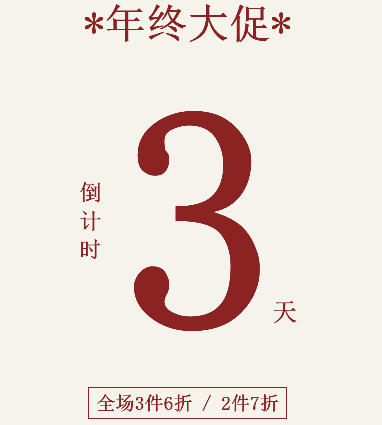
Xiaohongshu Countdown Sale Cover Maker
Generate countdown promotional posters with one click. Su...
Corrupted Image Detection and Filtering Tool
Batch check whether images are corrupted, supports multip...
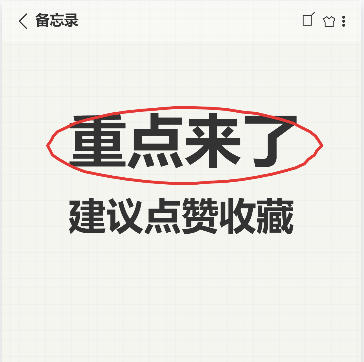
Xiaohongshu Memo-Style Cover Maker
Simulate a mobile notes interface with a grid background,...
Xiaohongshu Notebook-Style Cover Maker
Xiaohongshu-inspired popular notebook spiral-style cover,...