ID Photo Maker
Batch ID photo creation tool with AI-powered background removal, multiple ID photo size adjustments, custom background colors, and DPI settings.
Browser execution mode: Your data is processed in your browser and is not uploaded to the server.
Speed and Stability: Processing speed depends on your device and browser. For large batch work, the desktop version may be more stable.
Loading tool, please wait...
If the online tool fails to load or run, try the desktop tool.https://tools.yikeaigc.com/
Tool Usage
Return to old versionOnline ID Photo Maker(Software Version)
Professional batch ID photo maker with AI background removal, multiple ID photo sizes, custom background colors, and one-click batch generation of standard ID photos.
Instructions
Software Instructions
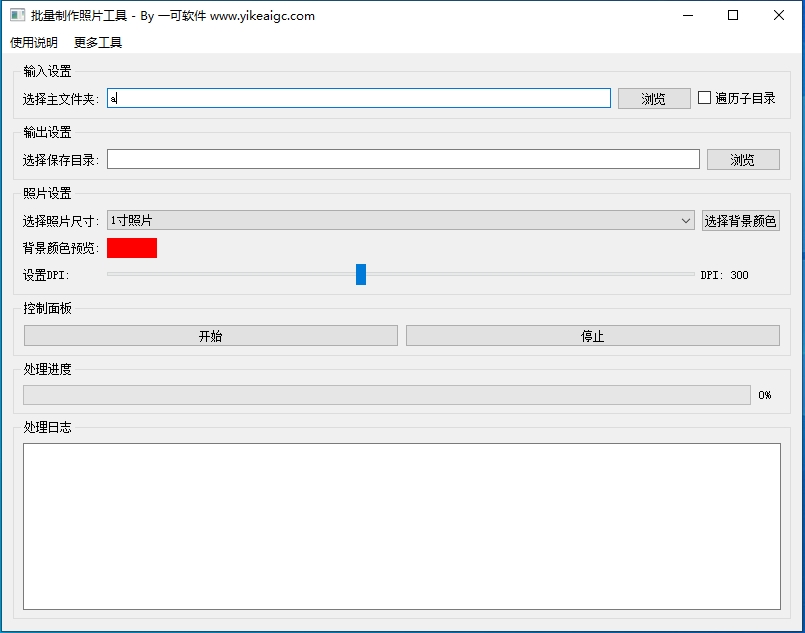
- Select the main folder: Click the "Browse" button and select the folder containing the images to be processed. Common image formats such as JPG, JPEG, PNG, BMP, GIF, and TIFF are supported.
- Set traversal options: Check "Traverse subdirectories" to process images in the main folder and all its subfolders. This is suitable for batch processing multi-level folder structures.
- Select the save directory: Click the "Browse" button and choose where to save the processed ID photos.
- Select photo size: Choose the required ID photo size from the drop-down list. The following specifications are supported:
- 1-inch photo: 295×413 pixels, commonly used for various IDs
- 2-inch photo: 413×579 pixels, commonly used for passports and visas
- Small 1-inch photo: 260×378 pixels, commonly used for driver's licenses, etc.
- Large 1-inch photo: 390×567 pixels, Chinese passport specification
- Small 2-inch photo: 413×531 pixels
- ID card photo: 358×441 pixels
- Marriage photo: 579×413 pixels (landscape)
- Select background color: Click the "Select background color" button and choose the desired background color from the palette (such as red, white, blue, etc.). The color preview area will display the selected color in real time.
- Set DPI: Drag the slider to set the DPI value of the output image (72-600). 300 DPI is recommended to ensure print quality.
- Start processing: Click the "Start" button. The software will automatically use AI background removal technology to remove the background and generate standard ID photos according to the specified parameters.
- View results: After processing is complete, view the generated ID photo files in the save directory.
FAQ
Related Tools
Batch Image Text Watermark Tool
Easily add custom text watermarks to multiple images, wit...
Batch Scanned Document Gray Background Removal and Enhancement Tool
Batch remove gray backgrounds, shadows, and paper texture...
Image Quality Detection/Scoring/Filtering
Batch detect image sharpness, exposure, contrast, noise, ...
Portrait and Landscape Image Auto Recognition and Organization Tool
Batch identify image orientation and aspect ratio, then c...
Online Gradient Background Generator
Preview CSS gradient effects in real time, supporting lin...
Image Deduplication Tool (Detection Bypass)
Batch image deduplication tool that makes it easy to pass...