Portrait and Landscape Image Auto Recognition and Organization Tool
Batch identify image orientation and aspect ratio, then classify, rename, and export
Browser execution mode: Your data is processed in your browser and is not uploaded to the server.
Speed and Stability: Processing speed depends on your device and browser. For large batch work, the desktop version may be more stable.
Loading tool, please wait...
If the online tool fails to load or run, try the desktop tool.https://tools.yikeaigc.com/
Tool Usage
Return to old versionImport images
Supports common image formats such as JPG, PNG, WEBP, BMP, and GIF. You can drag files into the selection area.
Set detection and export rules
Confirm thresholds and output format before processing.
Process and download
After starting, images are checked one by one, export rules applied, and a ZIP download prepared.
Instructions
Software Usage Instructions
- Select image files: Click “Select image files” or drag in images. Common formats such as JPG, PNG, WEBP, BMP, and GIF are supported, and you can select multiple images at once.
- Set classification thresholds:
- Square tolerance: Images with an aspect ratio close to 1 are classified as square; adjust based on the image source.
- Ultra-wide threshold: Suitable for identifying wide images such as banners and panoramas.
- Ultra-tall threshold: Suitable for identifying long images, vertical posters, and feed creatives.
- Select export categories: You can select landscape, portrait, square, ultra-wide, and ultra-tall. Unselected categories will be recorded in the report but image files will not be exported.
- Configure output options:
- Separate folders by category: Place images with different orientations and proportions into separate directories.
- Enable renaming: Supports placeholders such as {name}, {ext}, {width}, {height}, {ratio}, and {orientation}.
- Reports and thumbnails: Generate CSV/JSON recognition reports, and optionally generate thumbnails for images.
- Re-encoding: Output JPG, PNG, or WEBP, and set quality, maximum long-side pixels, and whether to upscale small images.
- Save settings: After confirming the parameters, click “Save settings” so the current configuration can be reused later.
- Start processing: Go to the processing and download step, click “Start recognition and organization,” and wait for the progress to complete.
- Download results: After processing is complete, you can preview the first 20 results and click “Download all results ZIP” to save the classified images and reports.
FAQ
Related Tools
Batch Image Text Watermark Tool
Easily add custom text watermarks to multiple images, wit...
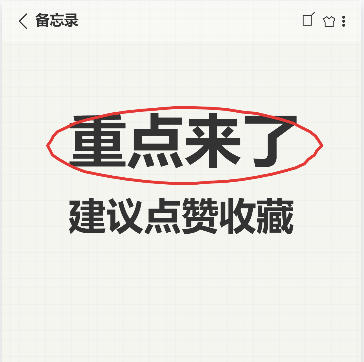
Xiaohongshu Memo-Style Cover Maker
Simulate a mobile notes interface with a grid background,...
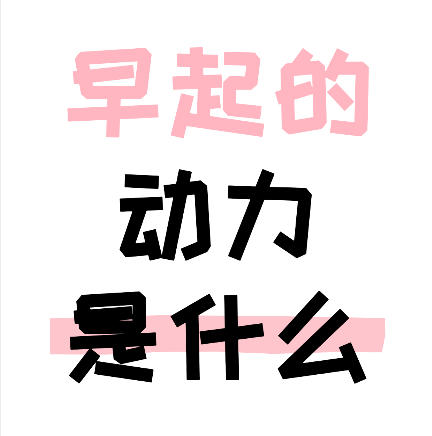
Xiaohongshu Large-Text Cover Maker
Create large-text covers for Xiaohongshu and Douyin, with...
Batch Scanned Document Gray Background Removal and Enhancement Tool
Batch remove gray backgrounds, shadows, and paper texture...
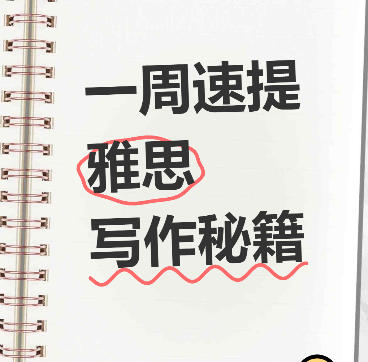
Xiaohongshu Spiral Notebook-Style Cover Maker
Notebook spiral journal-style cover, supports hand-drawn ...