
Batch Scanned Document Gray Background Removal and Enhancement Tool
Batch remove gray backgrounds, shadows, and paper texture from scanned documents, enhance the clarity of black-and-white text, ideal for organizing archives, exam papers, contracts, and receipts.
Loading tool, please wait...
If the online tool fails to load or run, try the desktop tool.https://tools.yikeaigc.com/
Tool Usage
Return to old versionBatch Scan Background Cleanup Tool(Software Version)
Removing gray backgrounds, shadows, and paper texture from scans requires intensive image processing. For a more stable and efficient experience, this feature is available only in the Windows desktop client.
Instructions
Software Usage Instructions
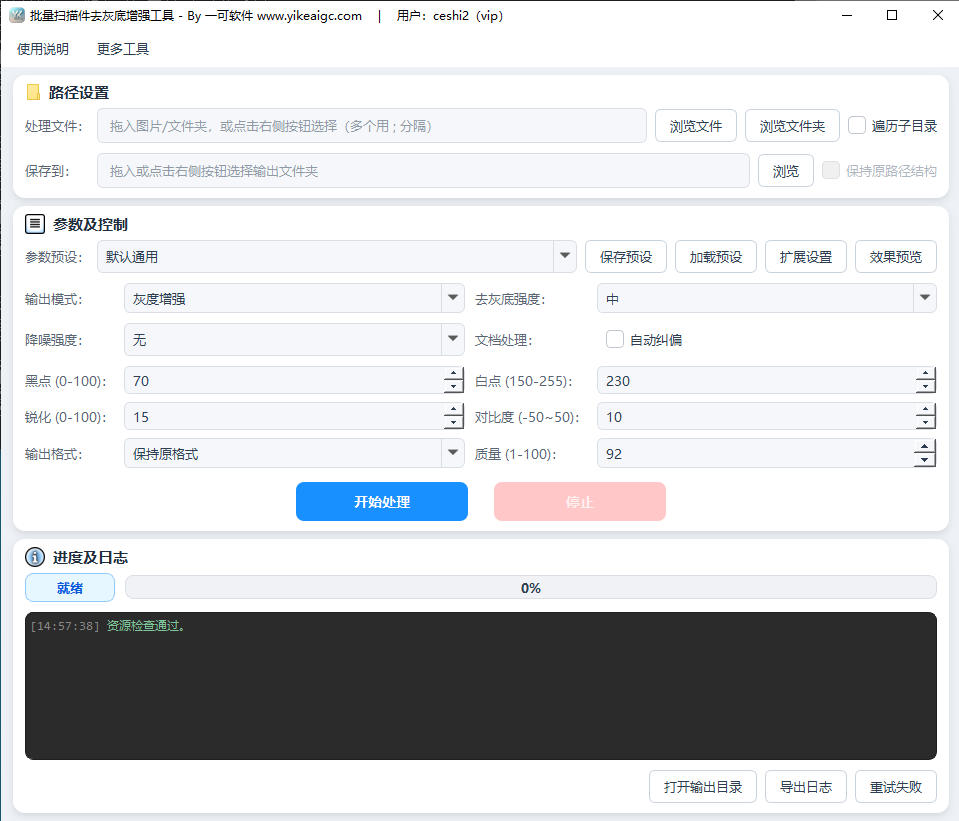
- Add files to process: Click the "Add Files" or "Add Folder" button and select the scanned images or entire folder you want to process. Multiple formats are supported, including JPG, PNG, BMP, TIFF, and WEBP, and you can add a large number of files in batches at once.
- Select a processing preset: Choose an appropriate preset based on the document type, including Default General, Exam Paper Pure Black and White, Contract with Red Seal Preserved, Old Yellowed Paper, Light Pencil Writing, Low-Noise Archiving, and more. Parameters will be configured automatically after selection.
- Select a processing mode:
- Grayscale Enhancement: Preserves grayscale levels, whitens the background, and darkens text; suitable for most documents
- Black-and-White Binarization: Outputs pure black-and-white images; suitable for printing exam papers and plain-text documents
- Color Preservation: Preserves colored content such as red seals and color annotations, while only whitening the background
- Adjust enhancement parameters: Fine-tune background removal strength, black point and white point levels, contrast, sharpening, and denoising strength as needed, and enable options such as automatic deskewing, table line enhancement, and white balance.
- Set output options: Choose the output format (keep original format, JPG, PNG, TIFF, BMP, WEBP), output quality, DPI, as well as the output folder and filename prefix/suffix.
- Start processing: Click the "Start Processing" button, and the tool will batch-enhance all images using the configured number of threads. The progress bar and log will display the processing status in real time.
- View results: After processing is complete, you can view the enhanced scanned files in the output folder. During processing, you can click "Stop" at any time to interrupt the task.
FAQ
Related Tools
One-Click AI Object Remover for Images
AI intelligently removes unwanted objects, people, and wa...
Random Image EXIF Information Adder
Batch-generate and write real EXIF metadata for images, s...
Inverted Mirrored Chinese Character Image Generator
Generate inverted/mirrored Chinese character images chara...
Batch Image Orientation Correction Tool
Batch recognize and correct image orientation, automatica...
Image Similarity Detection (pHash Algorithm)
An online image similarity detection tool based on the pH...