One-Click AI Object Remover for Images
AI intelligently removes unwanted objects, people, and watermarks from images. Brush over an area to remove it in one click and automatically fill the background.
Loading tool, please wait...
If the online tool fails to load or run, try the desktop tool.https://tools.yikeaigc.com/
Tool Usage
Return to old version
A desktop version is available with more powerful, stable features.
Open desktop version
Windows 10/11 only
One-Click AI Object Remover(Software Version)
An image inpainting tool based on the LAMA AI model. Brush over the area to remove, then erase unwanted objects, people, watermarks, and more with one click. The background is filled automatically for a natural, seamless result.
Brush-based, simple and intuitive
AI smart fill, natural results
Edit multiple times for fine adjustments
Local processing for privacy and security
Click to go to the software download page
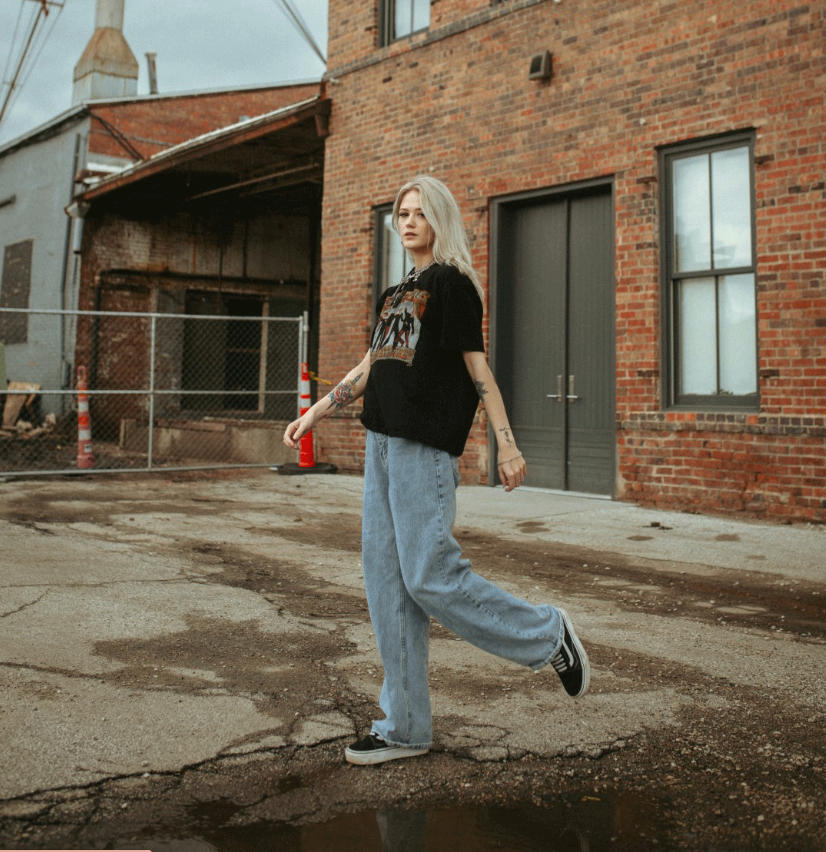
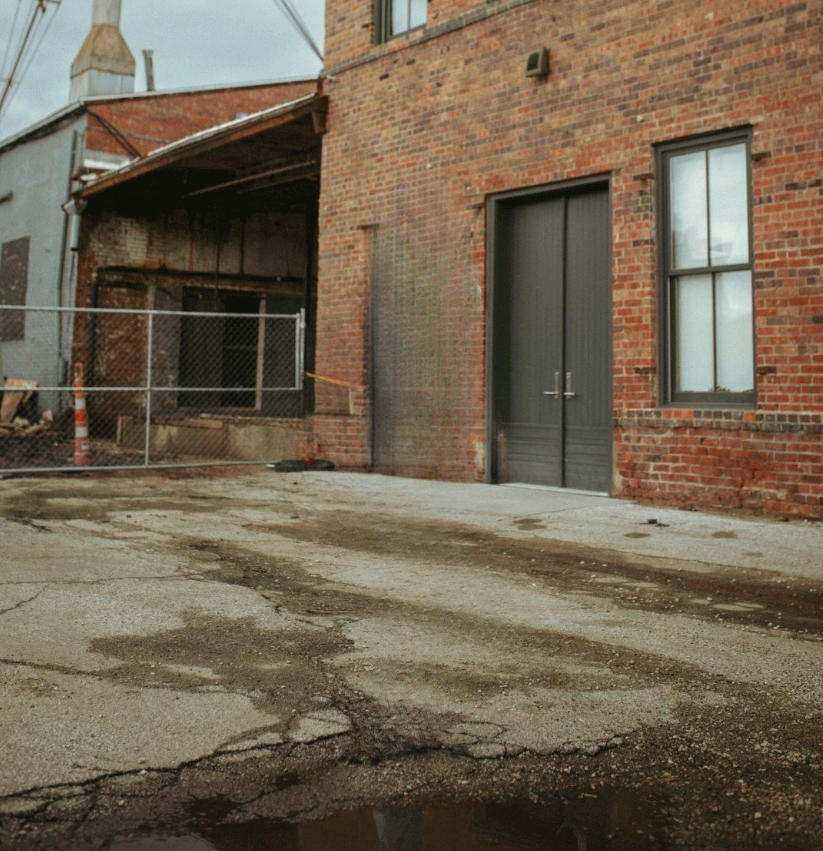
Result Preview
Drag the center line
Slide left or right
Instructions
Software Instructions
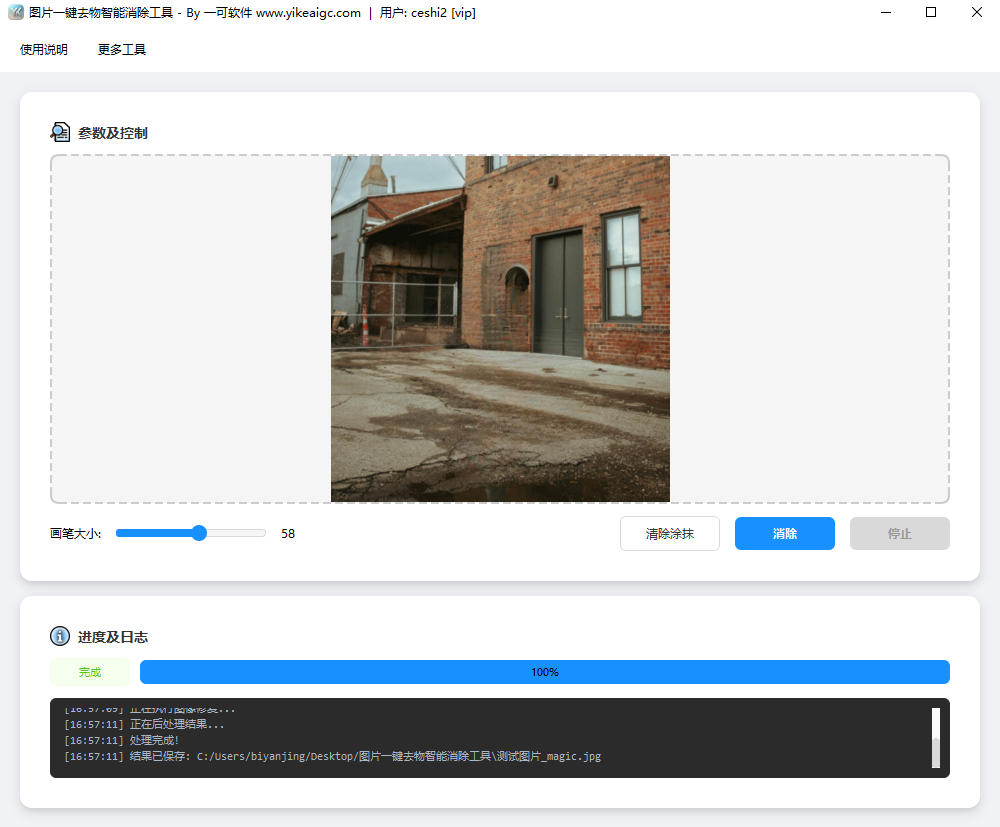
- Import an image: Click the preview area to select an image, or drag and drop an image directly into the preview area. Common image formats such as JPG, JPEG, PNG, BMP, and WEBP are supported.
- Brush over the area to remove: In the image preview area, hold down the left mouse button and drag to brush over the object or area you want to remove. The brushed area will be displayed in translucent red, making it easy to confirm the selected range.
- Adjust brush size: Use the "Brush Size" slider to adjust the thickness of the brush, with a range of 5-100 pixels. You can adjust it flexibly according to the size of the target to be removed.
- Clear brushing: If you are not satisfied with the brushed area, click the "Clear Brushing" button to clear all current brushed areas and start over.
- Remove: After brushing is complete, click the "Remove" button to start AI processing. A progress bar will be displayed during processing, so please wait patiently.
- Save the result: After processing is complete, the result image will be automatically saved to the same directory as the original image, with the file name format: original file name_magic.extension.
- Continue editing: After processing is complete, you can continue brushing on the result image and remove again to make multiple fine adjustments until you are satisfied.
FAQ
A: The software supports common image formats such as JPG, JPEG, PNG, BMP, and WEBP. High-resolution images are recommended for better removal results.
A: It is recommended to brush an area slightly larger than the content you actually want to remove. This allows the AI to better analyze surrounding pixels and perform intelligent filling, resulting in a more natural effect.
A: Processing speed mainly depends on CPU performance and the size of the brushed area. In general, processing takes a few seconds to a dozen seconds. The larger the brushed area, the longer the processing time.
A: After processing is complete, the resulting image will be automatically saved to the same directory as the original image, with "_magic" appended to the original file name. For example: photo.jpg will be saved as photo_magic.jpg after processing.
A: The software supports multiple edits. After processing is complete, you can continue brushing over the areas that need adjustment on the resulting image, then click the remove button again for another round of processing until you are satisfied with the result.
A: Make sure the lama_fp32.onnx model file is placed in the same directory as the software program. The model file is the core component for AI processing; without it, the software will not work properly.
A: No. All image processing is done locally on your computer. Image data will not be uploaded to any server, fully protecting your privacy and data security.
Related Tools
Image Resolution Adjustment and Compression Tool
Batch modify image resolution and compress image size, su...
Wave Gradient Background Generator
Generate multi-layer wave gradient backgrounds online, wi...
Batch Image Text Insertion Tool
Automatically read photo EXIF data (shooting date, camera...
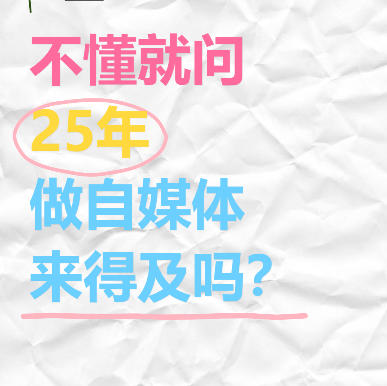
Xiaohongshu “Ask If You Don’t Know” Style Cover Maker
Wrinkled paper background with colorful handwritten text,...