AI Image Detection Tool
Batch process images with one click, removing AI traces through algorithms such as color quantization and noise injection to reduce the likelihood of detection.
Browser execution mode: Your data is processed in your browser and is not uploaded to the server.
Speed and Stability: Processing speed depends on your device and browser. For large batch work, the desktop version may be more stable.
Loading tool, please wait...
If the online tool fails to load or run, try the desktop tool.https://tools.yikeaigc.com/
Tool Usage
Return to old versionImage AI Detection Bypass Tool(Software Version)
Uses multiple algorithms to remove AI-generated image traces and reduce the chance of being flagged by AI detection tools. Can pass the October Zhuque detection.
Instructions
Software Usage Instructions
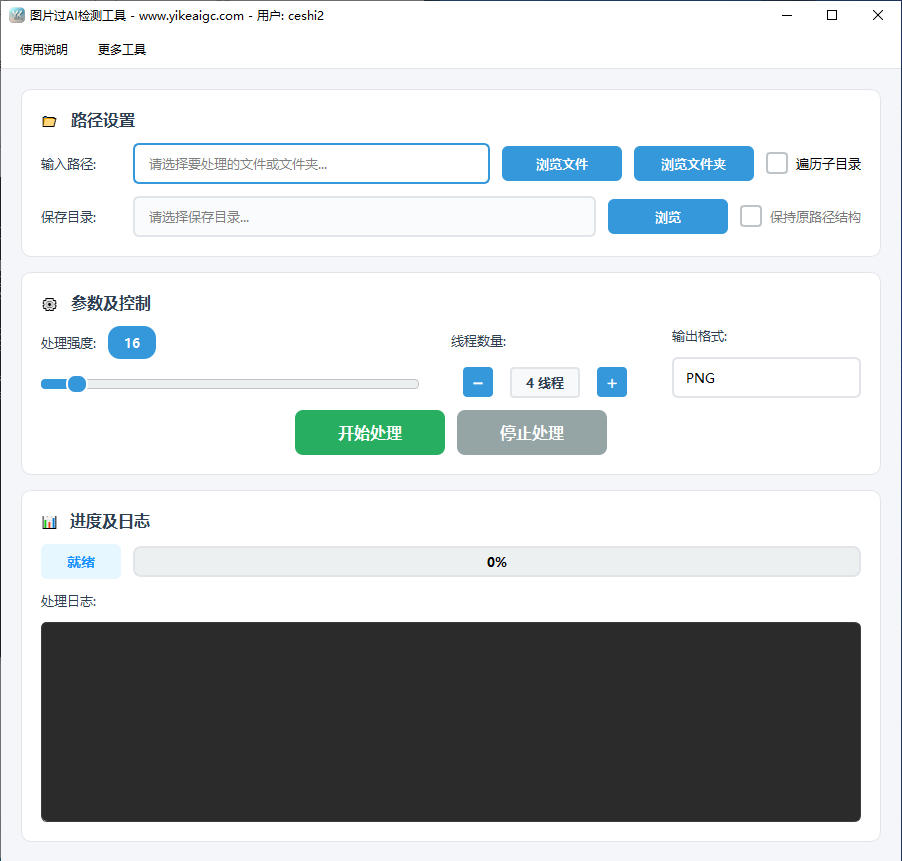
- Import image resources: Click "Browse Files" to select one or more images, or click "Browse Folder" to batch import an entire directory. Check "Traverse Subdirectories" to automatically process images at all levels within the folder.
- Set the save path: Select the output directory for the processed images. If "Traverse Subdirectories" is enabled, you can check "Keep Original Path Structure" to maintain the original folder hierarchy.
- Configure processing algorithms: Adjust the parameters as needed to achieve the best trace-removal results:
- Image quantization: Adjust the number of colors. The smaller the value, the stronger the processing and the more noticeable the trace-removal effect.
- Gaussian blur/noise: Moderately increasing the blur radius or noise intensity can disrupt the microscopic textures generated by AI.
- Denoising and image quality: Use median filtering for denoising, and adjust brightness, contrast, and JPEG output quality.
- Advanced options:
- Clean metadata: Enabled by default. Automatically removes sensitive information such as EXIF to protect privacy.
- Output format: Supports exporting as PNG, JPEG, WebP, or BMP.
- Multithreaded processing: Set the number of threads based on your computer configuration (4-8 threads recommended) to improve processing speed.
- Start processing: Click the "Start Processing" button, and the software will automatically execute the task. The log area below will display the processing progress and results in real time.
FAQ
Related Tools
Batch Image Top/Bottom Text Tool
Add custom text to the top or bottom of images in bulk, w...
Batch Full-Screen Text Watermark for Images
Batch add full-screen tiled text watermarks to images wit...
Color Image to Black and White Tool
Convert color images online to black and white, sepia, or...
Image Deduplication Tool (Detection Bypass)
Batch image deduplication tool that makes it easy to pass...
Batch Image Page Numbering Tool
Batch add page numbers and numbering to images, with recu...