Batch ID Front and Back Merge Tool
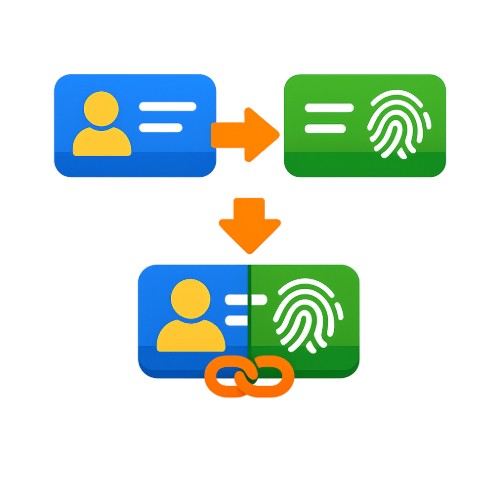
Intelligently pairs the front and back of IDs by file name, supports portrait, landscape, and A4 layouts, and merges them with one click for export as JPG, PNG, PDF, or Word.
Loading tool, please wait...
If the online tool fails to load or run, try the desktop tool.https://tools.yikeaigc.com/
Tool Usage
Return to old version
A desktop version is available with more powerful, stable features.
Open desktop version
Windows 10/11 only
Batch ID Front/Back Merge Tool(Software Version)
Smart front/back ID pairing, auto-rotation, and HD merging require significant computing resources. To provide a more stable and efficient experience, this feature is only available in the Windows desktop client.
Smartly pair front and back by filename
Supports portrait, landscape, and A4 layouts
Export JPG / PNG / PDF / Word in one click
Local processing; ID images are not uploaded to servers
Click to go to the software download page
Instructions
Software Instructions
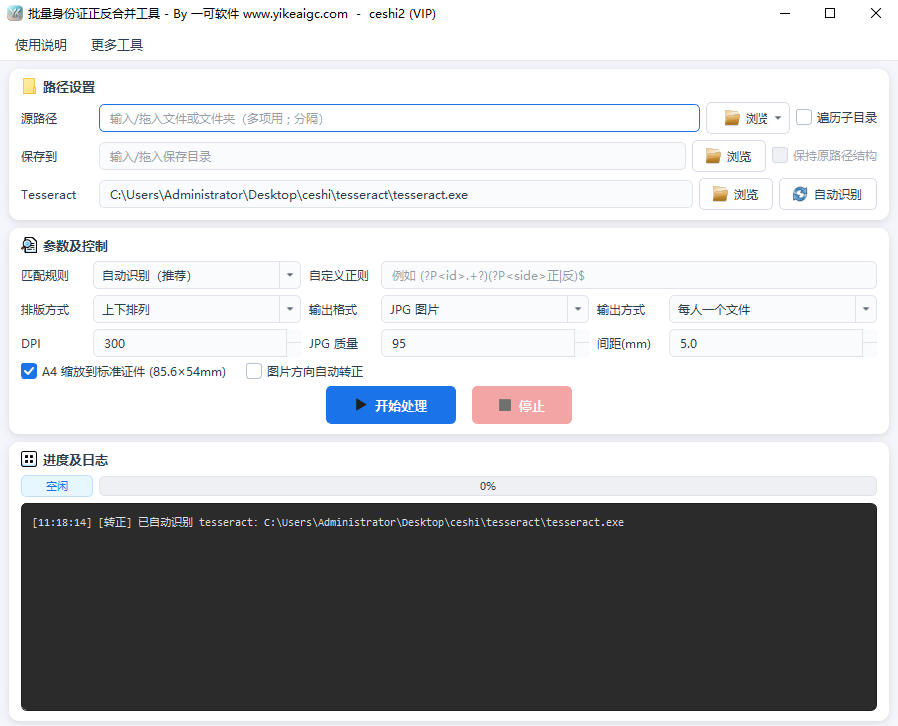
- Add ID images: Click "Choose File" or "Choose Folder" to import the front and back images of the IDs you need to merge. Batch import is supported, as well as common image formats such as jpg, png, bmp, tif, webp, and heic.
- Select a matching mode:
- Auto mode: Prioritizes pairing by front/back or same-name rules. Files named with pure numbers are automatically paired two by two in order.
- Same-name matching: Pairs only according to suffix rules such as front/back, portrait/emblem, front/back, A/B, and 1/2.
- Numeric order: Sorts files naturally by file name and groups every two adjacent images in sequence.
- Custom rule: Use a regular expression containing id and side capture groups to define your own pairing method.
- Set the layout:
- Vertical: The front and back sides are arranged one above the other.
- Horizontal: The front and back sides are arranged side by side.
- A4 layout: Places the ID in the center of an A4 page. You can choose to scale it to the standard ID size (85.6×54mm), making it convenient for printing photocopies.
- Adjust composition parameters: You can set the output DPI, spacing between the two images, background color, JPG quality, and more. You can also enable "Auto straighten" to straighten tilted ID images through text orientation detection.
- Select the output format: Export as JPG, PNG, PDF, or Word documents, and choose whether to merge multiple sets of results into one file.
- Start merging and save: After setting the output directory, click "Start Processing". The tool will automatically complete pairing and composition, save the results to the specified directory, and preserve the original folder structure.
FAQ
A: The tool has multiple built-in naming rules. It recognizes suffixes in file names such as "front/back", "portrait side/emblem side", "front/back", "A/B", and "_1/_2", and groups two images with the same prefix together. In auto mode, files named with pure numbers are also paired two by two in numeric order.
A: Yes. If the file names do not indicate front and back sides, we recommend using "Numeric order" mode. The tool will group every two adjacent images according to the natural sorting of file names. You can also batch rename them to a consistent rule first, or use a custom regular expression rule to precisely control the pairing method.
A: Vertical and horizontal layouts are suitable for compactly combining the front and back sides into one image for online submission or archiving. The A4 layout places the ID in the center of an A4 page and can scale it to the standard ID size, making it more suitable for directly printing ID photocopies.
A: You can enable the "Auto Rotate" feature. The tool detects the text orientation to determine the rotation angle needed for the image (0/90/180/270 degrees) and corrects it automatically. This feature relies on the text recognition component. If there are too few characters or the image is too blurry, it may not be able to determine the orientation, in which case the original orientation will be preserved.
A: Export to four formats is supported: JPG, PNG, PDF, and Word. When you need to print copies, we recommend using A4 layout with PDF or image format. When you need further editing or layout adjustment, you can choose to export as a Word document.
A: All pairing and compositing are completed on your local device. Document images are not uploaded to any server, and the processed results are saved directly to the directory you specify, making it suitable for handling sensitive documents such as ID cards.
A: Yes. The tool supports selecting an entire folder and recursively scanning subdirectories, matching and processing files in batches by directory. The original path structure is preserved on output, making it easy to batch organize large numbers of document photos for HR, finance, government services, and other scenarios.
Related Tools
Xiaohongshu Notebook-Style Cover Maker
Notebook Q&A-style cover, with customizable elements ...
Batch Image Top/Bottom Text Tool
Add custom text to the top or bottom of images in bulk, w...
Xiaohongshu Large-Text Cover Maker
Create large-text covers for Xiaohongshu and Douyin, with...
Xiaohongshu Book Quote Style Cover Maker
Book and notebook quote cover, with a gray textured backg...