AI Image Generator (Text to Image)
An intelligent image generation tool that supports single-image generation and template-based batch generation, using the gpt-image-1 model API.
Loading tool, please wait...
If the online tool fails to load or run, try the desktop tool.https://tools.yikeaigc.com/
Tool Usage
Return to old versionAPI Settings
Enter your proxy API URL and key. This tool uses OpenAI's gpt-image-1 model, currently the most cost-effective option at about 2–4 cents per image. Check pricing with your proxy platform.
Your API key. Data is not saved; all operations are handled in your browser!
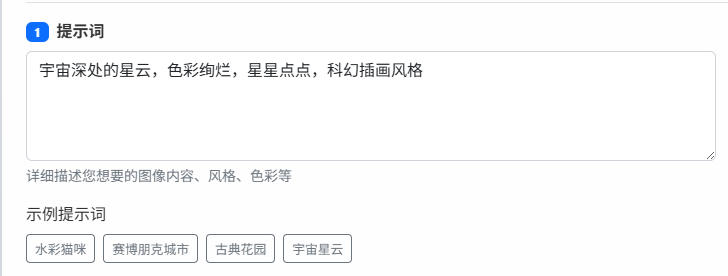
Describe the image content, style, colors, etc.
Use {variable} format to define variables in the template, e.g. {color}, {animal}, {scene}
After setting a template and variables, the generated prompt preview will appear here
Supported variables: {变量名}, {序号}, {时间戳}
Number of images generated at once, 1-5 recommended
0%
Results
Result Preview
Drag the center line
Slide left or right
Instructions
Software Usage Instructions
- Configure API Information: Enter your API domain and key in the "API Configuration" area at the top. The API domain supports the official OpenAI service or compatible services. Key information is used only locally and will not be uploaded to the server.
- Select Generation Mode:
- Single Generation: Enter a prompt to generate a single image
- Batch Generation: Use templates and variables to generate multiple images with different content in batches
- Single Generation Mode:
- Enter a detailed image description in the prompt box
- Select the image size (square, portrait, landscape, or auto)
- Set the image quality, output format, and compression level
- If you need a transparent background, select PNG or WebP format and check the corresponding option
- Batch Generation Mode:
- Use the {variable name} format in the template to define variable positions
- Set multiple values for each variable (one per line)
- Select the generation mode: full combination generates all variable combinations, while sequential generation matches variables by row
- View the prompts that will be generated in the preview area
- Start Generation: Click the corresponding generate button, and the tool will call the API to generate images. The progress bar will display the current generation status.
- View and Download: After generation is complete, preview the images in the results area. You can download individual images or download all images as a package.
FAQ
A: The tool supports the official OpenAI API and all third-party services compatible with the OpenAI API format. Simply enter the correct domain and key in the API configuration to use it. We recommend using a service that supports the gpt-image-1 model for better results.
A: Full Combination Generation creates combinations of all variable values, for example, 3 colors × 4 animals = 12 images; Sequential Generation matches variables by row, pairing the color in row 1 with the animal in row 1, which is suitable for pre-paired variable combinations.
A: Use the {variableName} format to mark replaceable parts in the template, such as "a {color} {animal} in {scene}". Variable names must exactly match the variable names set on the left, and the template should include enough descriptive information to generate the desired image.
A: You can control it through image quality, output format, and compression level. High quality with JPEG format is suitable for photo-realistic images, PNG format supports transparent backgrounds, and WebP format produces smaller files. The higher the compression level, the better the image quality, but the larger the file.
A: Yes. Each image consumes API quota. We recommend testing with a small number of variables first, then generating in bulk after you are satisfied with the results. The tool will ask for confirmation when generating more than 50 images to help avoid accidentally consuming too much quota.
A: Common reasons for generation failure include: an invalid API key, insufficient quota, network connection issues, or prompts being filtered because they contain sensitive content. Please check that the API configuration is correct, make sure your account has enough quota, and avoid using prompts with prohibited content.
A: No. All image generation and processing are completed on your device. Image data is only temporarily stored in memory for preview and download, and is not uploaded to any server, ensuring your creations remain completely private.
A: Tips for improving results: 1) Make your prompts detailed and specific, including information such as style, color, and composition; 2) Use artistic style terms such as "watercolor", "oil painting", and "photorealistic"; 3) Choose an appropriate image size; 4) For professional use, high-quality settings are recommended.
Related Tools
AI Article Rewriting and Originality Tool
Pass plagiarism detection! Pass AI article detection! Sup...
AI Video Quality Assessment Classification Tool
Uses a large model to score AI-generated videos across si...
Black and White Photo Colorization Tool
Smart AI black-and-white photo colorization tool, support...
AutoGLM Mobile AI Assistant for PC
A mobile automation tool based on Zhipu AI that controls ...
SRT/VTT Subtitle Translation Tool
Supports translation of SRT and VTT subtitle files while ...