
AI Prompt Batch Testing Tool
Read text in a folder as prompts, batch call AI APIs, and save response results, supporting multiple API formats and concurrent processing.
Loading tool, please wait...
If the online tool fails to load or run, try the desktop tool.https://tools.yikeaigc.com/
Tool Usage
Return to old versionAI Prompt Batch Testing Tool(Software Version)
Batch prompt API calls involve concurrent requests, failed retries, and large-scale file read/write, requiring a stable local runtime. This feature is only available in the Windows desktop client.
Instructions
Software Usage Instructions
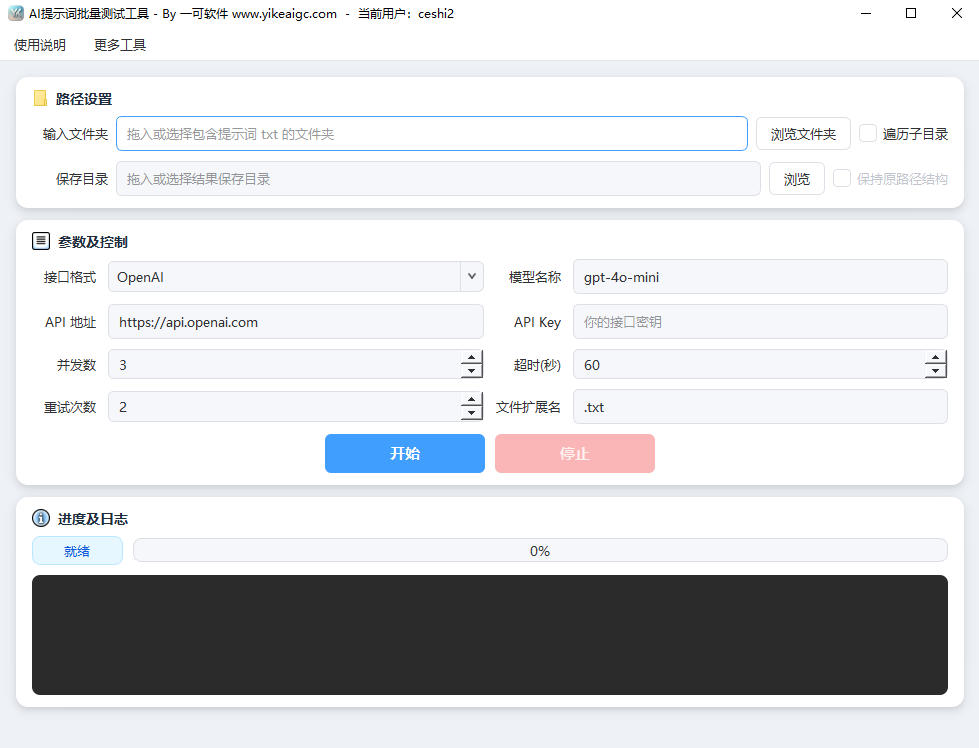
- Set the input folder: In "Path Settings", select the folder that stores the prompt text files. Each text file in the folder will be treated as a complete prompt. To process files in subfolders, check "Traverse Subdirectories"; if you want the output directory to retain the original subdirectory hierarchy, you can also check "Keep Original Path Structure".
- Set the save directory: Select the output directory for the processing results. Responses returned by the API will be saved in .txt format with the same name as the input file. If duplicate names occur, numbers will be appended automatically to distinguish them.
- Configure API parameters:
- API format: Supports OpenAI, NewAPI, sab2api, Gemini, Anthropic
- Model name: Enter the model name to call, such as gpt-4o-mini
- API address: For OpenAI-compatible APIs, you can enter only the domain name, and the program will automatically complete the path
- API Key: Enter the access key for the corresponding API
- File extension: Default is .txt; separate multiple extensions with English commas
- Set run controls: Set the concurrency, timeout for a single request, and the number of automatic retries after a request fails according to your API quota.
- Start processing: Click the "Start" button, and the tool will read the prompts one by one and call the API. Empty text files will be skipped automatically.
- View progress and logs: View the real-time processing status in the "Progress and Logs" area. After processing is complete, the log will summarize the number of successful, failed, and skipped items.
Frequently Asked Questions
Related Tools
AI Image Generator (Text to Image)
An intelligent image generation tool that supports single...
AI Foreign Trade Bulk Customer Acquisition Tool
Uses AI large models to intelligently identify potential ...
AI Video Quality Assessment Classification Tool
Uses a large model to score AI-generated videos across si...
AutoGLM Mobile AI Assistant for PC
A mobile automation tool based on Zhipu AI that controls ...
Bilingual Subtitle Translation Tool
Smart subtitle translation tool supporting SRT and VTT fo...
AI Article Rewriting and Originality Tool
Pass plagiarism detection! Pass AI article detection! Sup...
AI Video Generation Tool (Batch Supported)
sor2 model, supports text-to-video and image-to-video, ca...