WeChat Local Chat Keyword Real-Time Monitoring Tool
Read local WeChat chat history, compare it in real time against set keywords, and when a match is found, show a pop-up alert and automatically archive the record.
Loading tool, please wait...
If the online tool fails to load or run, try the desktop tool.https://tools.yikeaigc.com/
Tool Usage
Return to old version
A desktop version is available with more powerful, stable features.
Open desktop version
Windows 10/11 only
WeChat Local Chat Keyword Monitor(Software Version)
Reading the local WeChat database and matching keywords in real time requires background operation and system resources. To provide more stable, timely alerts, this feature is only available in the Windows desktop client.
Monitor multiple keywords at once with instant desktop pop-up alerts
Auto-detect account folders and read local chat history
Matched records are auto-archived as CSV and kept locally
Click to go to the software download page
Instructions
Software Usage Instructions
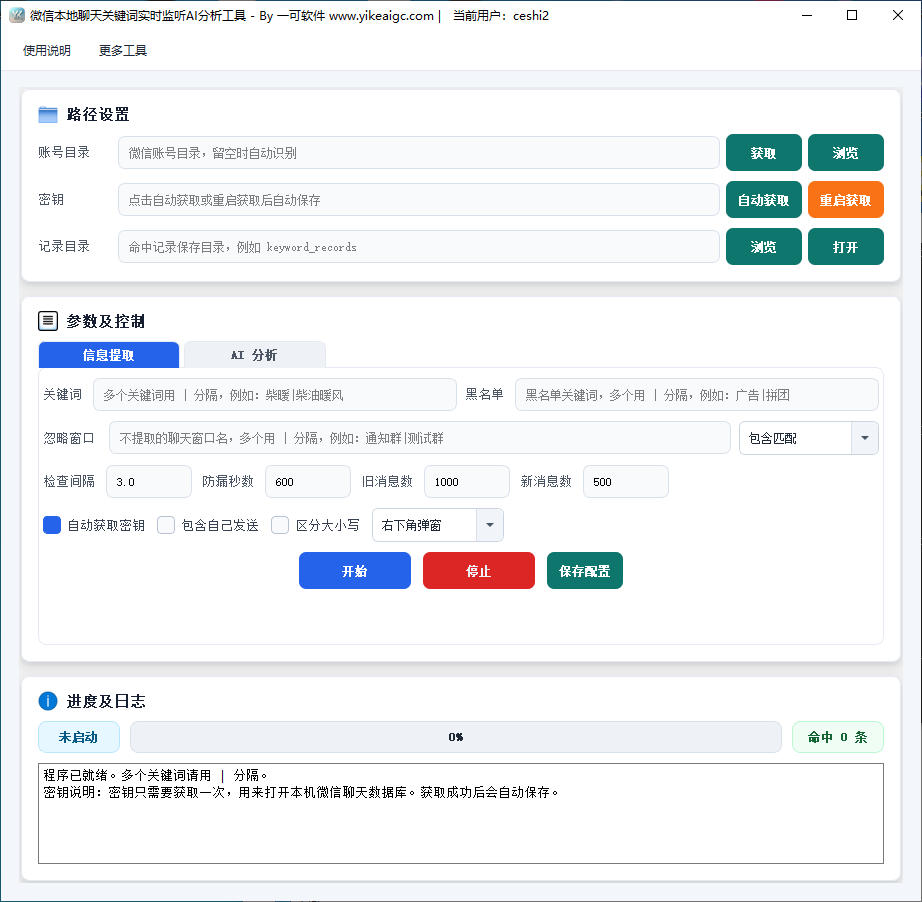
- Start WeChat and log in: Before use, open and log in to the WeChat client on your computer, and make sure the local chat history is readable. The software relies on the running WeChat process to obtain the database key.
- Set monitoring keywords: Enter the content you want to monitor in the "Keywords" input box. Multiple keywords are supported; separate them with a vertical bar "|" (for example: registration|shipping|payment collection). A reminder will be triggered when any one of them is matched.
- Configure monitoring options:
- Automatically obtain key: When checked, the software will automatically try to obtain the WeChat database key, with no need to enter it manually
- Include messages sent by yourself: When checked, messages you send that match the keywords will also be recorded. This is unchecked by default
- Bottom-right reminder: When checked, a reminder window will pop up in the bottom-right corner of the screen when a keyword is matched
- Case sensitive: Choose whether keyword matching should distinguish uppercase and lowercase English letters as needed
- Select account directory: The software automatically detects the WeChat account directory by default. If it cannot be detected, you can manually specify the corresponding account folder in xwechat_files.
- Start monitoring: Click the "Start Monitoring" button. The software will first scan historical messages to complete the initial comparison, then enter real-time monitoring mode. The status bar will display the current progress and number of matches.
- View and export records: Matched messages are automatically archived as CSV files by date, including fields such as chat window, sender, matched keyword, and message content. You can open the records directory at any time to view them or analyze them with spreadsheet software.
FAQ
A: Simply separate keywords with a vertical bar "|". For example, enter "registration|shipping|payment collection"; if any one of these words appears in a message, a reminder will be triggered. Extra spaces before and after each keyword will be automatically removed, and duplicate keywords will be automatically merged.
A: The software obtains chat history by reading the local WeChat database, and the database requires a key to be decoded. Only when WeChat is logged in and running can the software automatically obtain the key and read local records. Therefore, please make sure WeChat is open and logged in before use.
A: You can try the "Restart to Obtain" function in the software. After you click it, the software will close and restart WeChat. Follow the prompts to scan the QR code to log in or confirm the login. After login is complete, the key can be obtained automatically. Please make sure WeChat is installed on your computer and can be opened normally.
A: No. The software reads the local WeChat database. Keyword matching and record archiving are completed on your own computer. Chat content and matched records are saved in a local directory and will not be uploaded to any server. Your data remains under your control.
A: Real-time monitoring detects database changes, allowing new messages to be matched and alerts to be sent more quickly after they arrive. When real-time monitoring is unavailable in the current environment, the software automatically switches to scheduled checks that poll at fixed intervals. Keyword hit alerts can still be completed, but notifications may be slightly delayed.
A: Matched records are automatically saved by date as CSV files in the records folder under the software directory. They include fields such as record date, message time, chat window, sender, matched keyword, message content, and session ID, and can be opened directly in spreadsheet software such as Excel or WPS for viewing and statistics.
A: The software automatically detects common account directory locations by default. If it cannot be detected, you can manually specify the account folder in Settings. It is usually located in the corresponding account subdirectory inside the xwechat_files folder under the "Documents" directory. Once selected, it can be read normally.
Related Tools
Word Document Image Extraction Tool
Batch extract embedded images from DOCX documents, with s...
XLSX File Keyword Filtering Tool
Quickly filter rows that meet the criteria in multiple XL...
Document Keyword Occurrence Count
Count keyword occurrences in PDF/DOCX/PPTX and other docu...
TXT Batch Delete Specified Lines Tool
Batch process TXT files, supporting multiple deletion rul...