Batch Audio Vocal Separation Tool
Batch separate vocals and accompaniment from music, with support for recording noise reduction, echo and reverb removal, vocal extraction, and local offline processing.
Loading tool, please wait...
If the online tool fails to load or run, try the desktop tool.https://tools.yikeaigc.com/
Tool Usage
Return to old versionBatch Audio Vocal Remover(Software Version)
AI vocal separation requires significant computing resources. To provide a more stable and efficient experience, this feature is available only in the Windows desktop client.
Instructions
Software Usage Instructions
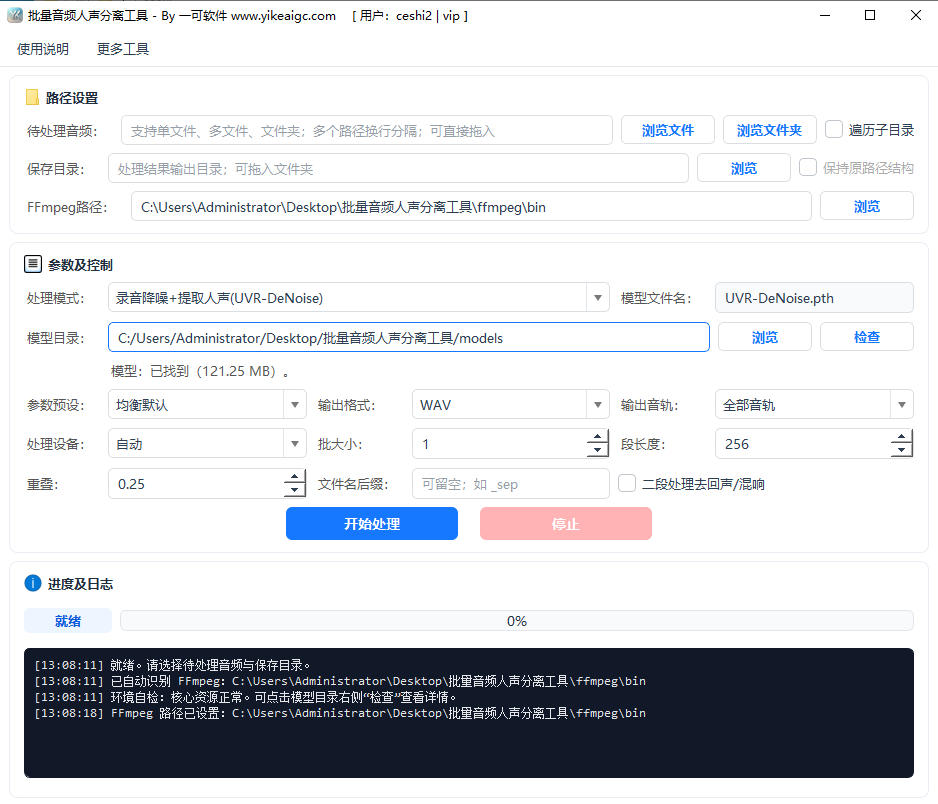
- Add audio files: Click "Add File" or "Add Folder" to import the audio you want to process. Batch import is supported, and you can check "Recursive Subdirectories" to automatically scan all audio files in the folder. Common formats such as MP3, WAV, FLAC, M4A, AAC, and OGG are supported, and audio tracks in videos such as MP4 and MKV can also be processed directly.
- Select a processing mode:
- Music vocal separation: Separate a song into two tracks: vocals and accompaniment. Different models such as high quality, recommended, and fast are available.
- Recording noise reduction and vocal extraction: Extract clear vocals from materials with background noise, such as recordings, podcasts, and live streams.
- Echo and reverb removal: Remove echo and reverb from vocals, and it can be processed in sequence with noise reduction mode.
- Set the model directory: When using it for the first time, place the model files in the models folder at the same level as the software, and the software will automatically recognize them. If a model is missing, you can obtain the corresponding model file from the download link as prompted.
- Configure processing options:
- Output format: WAV, FLAC, and MP3 are available.
- Parameter presets: Presets such as balanced default, speed priority, quality priority, and low memory are provided.
- Output directory: Specify where to save the separation results, and optionally preserve the original directory structure.
- Start processing: Click the "Start Processing" button, and the software will process all audio files in the queue one by one. Progress and logs will be displayed in real time.
- View results: After processing is complete, you can find the separated vocal and accompaniment files in the output directory. The file names will indicate the corresponding track type.
FAQ
Related Tools
Audio Fingerprint Duplicate Checker
Using voiceprint fingerprint comparison, automatically fi...
Online Audio Distortion Effect Tool
Professional audio distortion processing, supporting four...
Audio Quality Inspection Report Tool
Batch-check audio sample rate, clipping, pops, silence, l...
Automatic Audio Gap Trimming Tool
Automatically detect and remove silence segments and brea...
Batch Video and Audio Voice Changer Software
Batch voice changing for video and audio files, with mult...
Audio and Video Duration Filter Tool
Batch analyze the duration information of audio and video...
Batch Audio Volume Adjustment Tool
Increase, decrease, and normalize audio volume online. Su...