Xiaohongshu Sticky Note Style Cover Maker
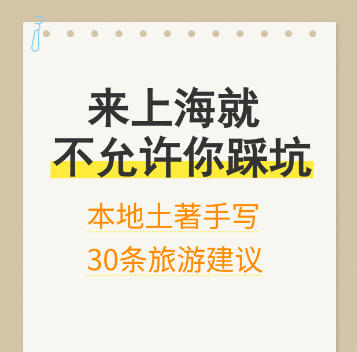
Sticky note–style cover with a kraft paper background and paperclip decoration, supporting highlighter highlights and dashed underline effects
Browser execution mode: Your data is processed in your browser and is not uploaded to the server.
Speed and Stability: Processing speed depends on your device and browser. For large batch work, the desktop version may be more stable.
Loading tool, please wait...
If the online tool fails to load or run, try the desktop tool.https://tools.yikeaigc.com/

Tool Usage
Return to old versionCanvas size
Background Settings
Default style
Custom color
Custom Image
Image will auto-stretch to canvas size
Sticky note settings
80px
5px
Main title (supports multiple lines)
Subtitle (supports multiple lines)
Font Settings
After upload, use "Custom Font" in font selection
Sticker Decorations
✕
🤨
🤔
😤
😎
😢
😂
😱
😍
👍
👌
🔥
⭐
❤️
✅
Quick Examples
Export Settings
1242 × 1660 px
每行代表一张封面,使用 | 分隔同类文字行,使用 || 分隔主标题和副标题
When checked, all settings from single-image creation will be used
Enter text, then click "Generate Batch Covers"
Instructions
Software Usage Instructions
- Select canvas size: Supports preset sizes such as Douyin 9:16, Xiaohongshu 3:4, square, etc., and you can also customize the width and height.
- Set background style:
- Default style: Kraft paper texture outer background + white sticky note paper, with adjustable colors
- Custom color: Use a solid color as the background
- Custom image: Upload an image as the background, automatically stretched to the canvas size
- Adjust sticky note settings: Set margins and rounded corners, choose whether to show binder holes and a paperclip, and adjust the paperclip color and position.
- Edit main title: Click "Add main title line" to add text. Each line can have its own font size, color, bold setting, and highlighter effect (color and height adjustable).
- Edit subtitle: Click "Add subtitle line" to add text. Each line can have its own font size, color, and underline decoration (supports dashed, solid, dotted, and wavy lines).
- Select fonts: Main titles and subtitles can use separate fonts, and custom TTF/OTF/WOFF font files can be uploaded.
- Add sticker decorations: Select emoji stickers and adjust their size, position, and offset.
- Quick examples: Click "Travel Guide", "Food Recommendations", or "Life Tips" to quickly load sample data.
- Download cover: Select an export format (PNG/JPEG/WebP) and quality, then click "Download cover image" to save it.
- Batch creation: Switch to the "Batch creation" tab, enter multiple lines of text, check "Use current single-image settings" to apply all parameters from single mode, click "Generate batch covers" to preview the first 20 images, and click "Download all (ZIP)" to download them as a package.
FAQ
A: Click the "Travel Guide" button under "Quick examples" to load the same style settings as the sample image, including the kraft paper background, highlighter effect, orange subtitle with dashed underline, skeptical emoji sticker, and more. You can then modify the text content based on it.
A: In the main title settings, check the "Highlighter effect" checkbox, then choose the highlight color and adjust the highlight height. The highlight effect will appear beneath the text, simulating the look of a highlighter stroke.
A: Each line represents one cover. Use | to separate lines of the same type of text, and use || to separate the main title and subtitle. For example: "When in Shanghai|Don’t Fall Into Tourist Traps||Handwritten by a Local|30 Travel Tips". After checking "Use current single-cover settings", batch generation will apply all style parameters from single-cover mode.
A: In the font settings, select "Custom Font" for the main title or subtitle font, then choose a TTF, OTF, or WOFF font file in the upload area that appears below. After the upload is successful, the font will be automatically applied to the corresponding text.
A: The preview area scales the image proportionally to fit the display area. The actual exported image is a high-resolution image generated according to the canvas size you set (such as 1242×1660 pixels). The actual size and zoom ratio will be displayed below the preview area.
A: Three formats are supported: PNG, JPEG, and WebP. PNG supports transparent backgrounds but has larger files; JPEG files are smaller but do not support transparency; WebP balances quality and file size. You can choose from three quality levels: high quality, standard, or compressed.
A: The system automatically handles duplicate file names. Batch-generated covers are named by sequence number by default (such as cover-001.png, cover-002.png). If a duplicate name occurs, a numeric suffix will be automatically added to the file name to distinguish it.
Related Tools
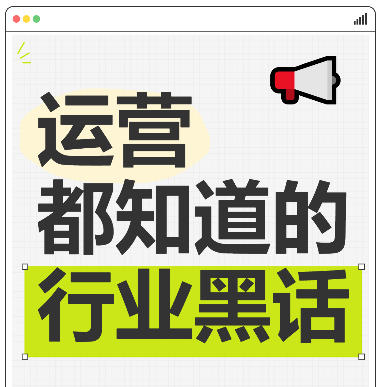
Xiaohongshu iPad Tablet-Style Cover Maker
Simulates an iPad tablet frame design, with support for g...
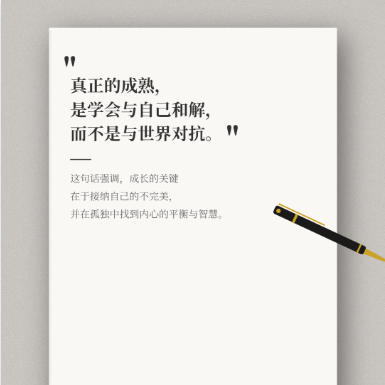
Xiaohongshu Book Quote Style Cover Maker
Book and notebook quote cover, with a gray textured backg...
Batch Image Fine-Tuning Originality Tool
Locally batch process image parameters, supports fine-tun...