
Batch Video Floating Watermark Tool
Batch add floating watermarks to videos, with support for various dynamic watermark modes such as bouncing movement, tiling, and rotation. Customize text or image watermarks.
Loading tool, please wait...
If the online tool fails to load or run, try the desktop tool.https://tools.yikeaigc.com/
Tool Usage
Return to old version
A desktop version is available with more powerful, stable features.
Open desktop version
Windows 10/11 only
Batch Video Floating Watermark Tool(Software Version)
FFmpeg-based batch video floating watermark tool with bounce, tile, rotate, and other modes for copyright protection and content branding.
Supports text and image watermarks
Six watermark motion modes: bounce, fixed position, random fixed, tile, rotate, fade in/out
Supports batch processing and multi-thread acceleration
Supports hardware encoding acceleration (NVIDIA/Intel/AMD)
Click to go to the software download page
Instructions
Software Usage Instructions
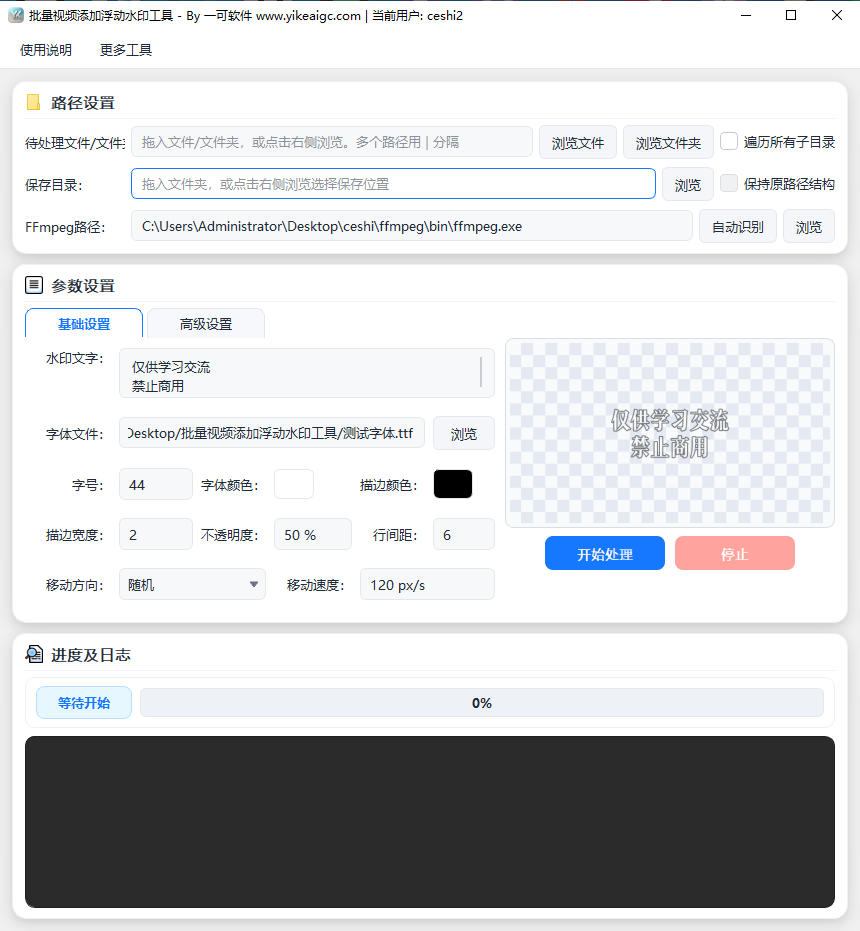
- Add video files: Click the "Add Files" or "Add Folder" button to select the videos you want to process. You can also drag and drop video files or folders directly into the software window. Common video formats such as MP4, MKV, AVI, MOV, FLV, and WebM are supported.
- Select the watermark type:
- Text watermark: Enter the watermark text content, and set the font, font size, color, outline width, and outline color
- Image watermark: Select a PNG image with a transparent background as the watermark material
- Select the watermark movement mode:
- Bouncing movement: The watermark bounces around the frame like a billiard ball, preventing it from being covered in a fixed area
- Fixed position: The watermark stays fixed at a specified position in the frame (top left, top right, bottom left, bottom right, center, etc.)
- Random fixed position: The watermark appears in a different random position for each video
- Tiled watermark: The watermark covers the entire frame, suitable for strong copyright protection
- Rotated watermark: The watermark is displayed with a rotation angle
- Fade in/out movement: A movement mode where the watermark has fade-in and fade-out effects
- Configure watermark parameters:
- Opacity: Adjust the transparency level of the watermark (0-100%)
- Movement speed: Set the movement speed of the floating watermark
- Movement direction: Options include random, mainly horizontal, diagonal, mainly vertical, slow drift, and more
- Auto scaling: Automatically adjust the watermark size based on the video resolution
- Display time period: Set the start and end time for displaying the watermark
- Set output options: Select the output format (keep original format/MP4/MKV/WebM), encoder (CPU/NVIDIA/Intel/AMD hardware acceleration), output quality, and output strategy.
- Start processing: Click the "Start Processing" button, and the software will automatically add floating watermarks to all videos in batches, with processing progress displayed in real time.
FAQ
A: Bouncing watermarks offer better anti-theft protection. Fixed-position watermarks can be easily removed by cropping or covering that area, while bouncing watermarks constantly change position within the frame, making them difficult to remove with simple area masking and effectively preventing video theft.
A: Mainstream video formats such as MP4, MOV, AVI, MKV, FLV, WMV, WebM, TS, M4V, MPG, MPEG, 3GP, RMVB, MTS, and M2TS are supported, covering virtually all video formats encountered in daily use.
A: Select the appropriate hardware acceleration option in the encoder settings: choose "NVIDIA NVENC" for NVIDIA graphics cards, "Intel QSV" for Intel integrated graphics, and "AMD AMF" for AMD graphics cards. You can also choose "Auto (Hardware First)" to let the software automatically detect available hardware encoders. Hardware acceleration can significantly improve video encoding speed.
A: Yes. The software supports setting the number of parallel tasks (1-8), allowing multiple video files to be processed simultaneously with multiple threads. It is recommended to set the parallel count according to your computer configuration. If your CPU is powerful or you are using hardware encoding, you can increase the parallel count appropriately to improve overall processing efficiency.
A: It is recommended to set the opacity between 30% and 60%. If the opacity is too high, it will affect the viewing experience; if it is too low, the watermark will not be visible enough to provide protection. The specific value can be adjusted based on the contrast between the watermark color and the video image. It is recommended to test the effect on a single video before batch processing.
A: "Auto Rename" automatically adds a number when there is a file name conflict; "Overwrite Existing" directly replaces an output file with the same name; "Skip Existing" skips existing files with the same name; "Output Next to Source File" generates a file with the "_watermark" suffix in the same directory as the original video; "Overwrite Original File" directly replaces the original video file (use with caution).
A: We recommend using a PNG image with a transparent background as the watermark material, so there won’t be a white or other colored background box around the watermark. If you use a JPG or other image format that does not support transparency, the watermark will have a rectangular background, which affects the visual appearance.
Related Tools
Batch Video Subtitle Adding Tool
A desktop tool for batch adding subtitles to MP4 videos. ...
Batch Video Black Border Remover
Automatically detects black borders at the top, bottom, l...
Batch Video Volume Adjustment Tool
Batch adjust video and audio volume, supporting multiplie...
Video Aspect Ratio Adjustment Tool
Professional video aspect ratio calculator and adjustment...
Batch Soft Subtitle Muxing Tool
Batch mux SRT, ASS, and other subtitles into MP4 or MKV w...