Batch Video Volume Adjustment Tool
Batch adjust video and audio volume, supporting multiplier, dB, LUFS loudness normalization, peak normalization, and mute modes, while preserving video quality and automatically adapting the output format.
Loading tool, please wait...
If the online tool fails to load or run, try the desktop tool.https://tools.yikeaigc.com/
Tool Usage
Return to old versionBatch Video Volume Adjuster(Software Version)
Audio loudness analysis, LUFS normalization, and multi-thread encoding require significant computing resources. To provide a more stable and efficient experience, this feature is available only in the Windows desktop client.
Instructions
Software Instructions
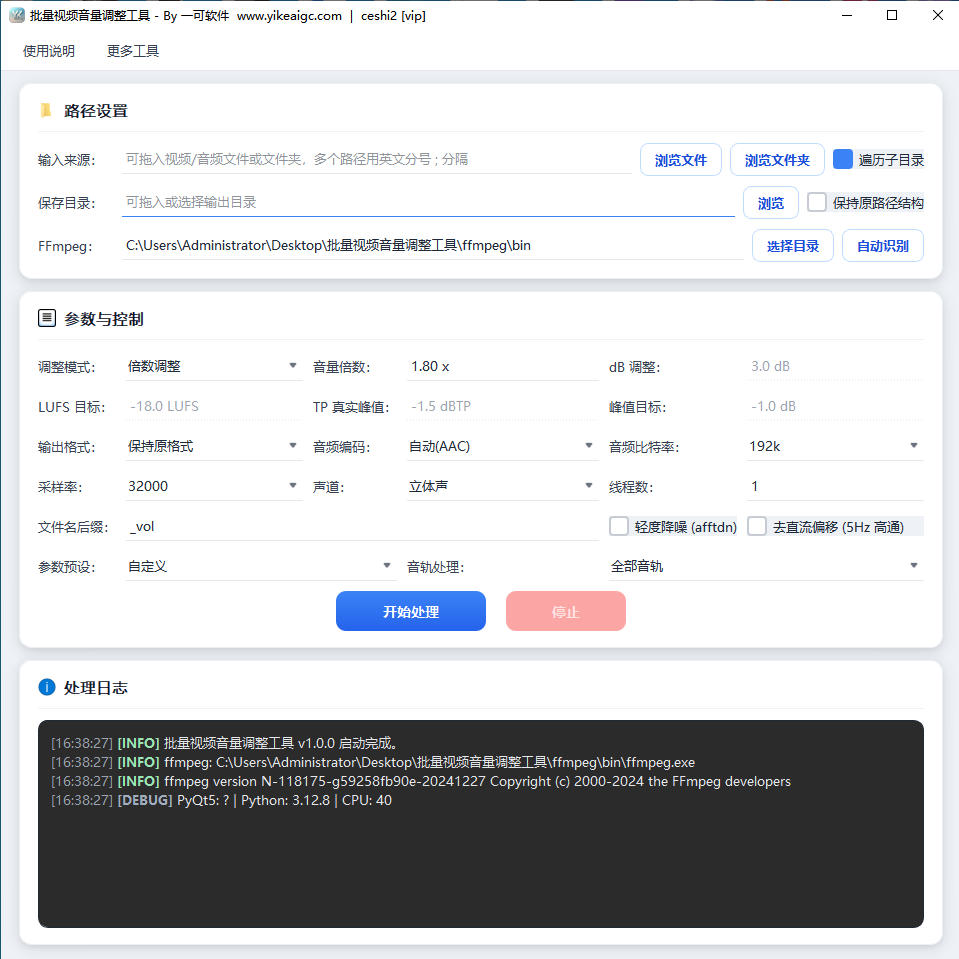
- Add video or audio files: Drag files or folders into the "Input Source" field, or click the "Browse Files" or "Browse Folder" button to select them. Separate multiple paths with an English semicolon ";". Checking "Traverse Subdirectories" will recursively scan all levels.
- Set the save directory: Drag in or click "Browse" to specify the output folder. After checking "Keep Original Path Structure", the output will preserve the source directory hierarchy, and _1, _2, etc. will be automatically appended when file names conflict.
- Select an adjustment mode:
- Multiplier Adjustment: Quickly increase or decrease volume by 0.0–20.0x
- dB Adjustment: Precisely increase or decrease by decibels; it is recommended not to exceed +12dB to avoid clipping
- Loudness Normalization (LUFS): Two-pass loudnorm precisely aligns to the target loudness, suitable for short videos and podcasts
- Peak Normalization: First detects the maximum peak, then accurately compensates and limits
- Mute: Sets the entire audio track to zero
- Configure output parameters:
- Output format: Supports keeping the original format or exporting as mp4, mkv, mov, webm, mp3, m4a, wav, flac, aac, ogg, opus, etc.
- Audio codec and bitrate: Options include auto AAC, MP3, Opus, FLAC, etc., with adjustable bitrate from 64k to 320k
- Sample rate and channels: Keep the original parameters or convert to 16k–96k sample rate, mono, or stereo
- Audio track processing: Process all audio tracks or only the first audio track
- Additional options: Enable light noise reduction and a 5Hz high-pass filter to remove DC offset
- Use preset quick settings: From the "Parameter Presets" dropdown, you can switch with one click to scenarios such as short video loudness (-16 LUFS), podcast narration (-18 LUFS), light gain (+3 dB), batch mute, audio extraction (MP3), and more, eliminating the need to configure each item individually.
- Start processing: After setting the number of threads, click "Start". The task list displays queued, analyzing, processing, succeeded, or failed statuses in real time. If failures occur, click "Retry Failed" to process again, and "Export Log" to save all processing records.
FAQ
Related Tools
Bulk Video and Audio Transcription Tool
Batch transcribe video and audio files offline into text,...
Batch Video Floating Watermark Tool
Batch add floating watermarks to videos, with support for...
Batch Video Duration Spoofing Tool
Batch edit video metadata duration information, supportin...
Video and Audio Parameter Report Export Tool
Read audio and video codec, bitrate, frame rate, sample r...
Batch Video and Audio Prohibited Words Detection
Batch-identify local audio and video content, automatical...