
Batch Image to Video Tool
Batch combine images into MP4 videos, with support for transition effects, background music, subtitle watermarks, picture-in-picture, and multiple image selection modes.
Loading tool, please wait...
If the online tool fails to load or run, try the desktop tool.https://tools.yikeaigc.com/
Tool Usage
Return to old versionBatch Image to Video Tool(Software Version)
Creating videos from images involves video encoding, transition rendering, and audio-video sync, which requires significant CPU and GPU resources. To provide a stable, smooth processing experience, this feature is only available in the Windows desktop client.
Instructions
Software Instructions
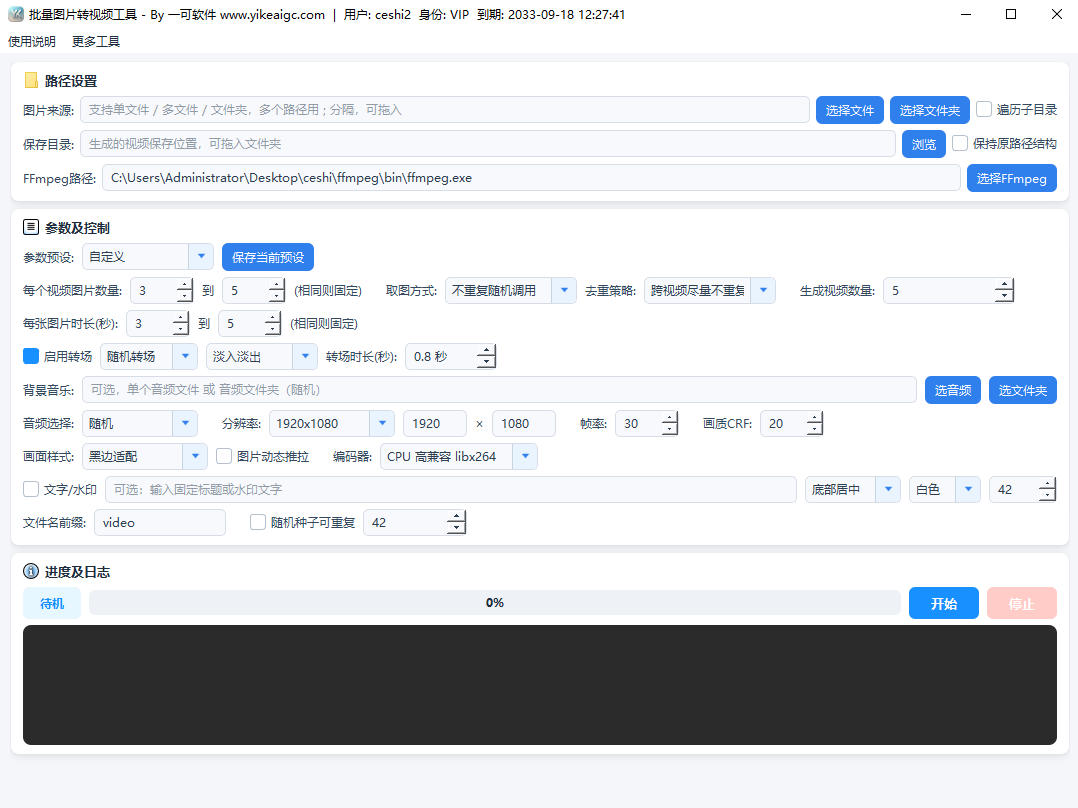
- Import image assets: Click the "Add Files" or "Add Folder" button, or drag images or folders into the software window. Common formats such as JPG, PNG, BMP, WebP, TIFF, and JFIF are supported. Enable "Recursively read subdirectories" to load all images from multi-level folders.
- Select an image selection mode:
- Sequential: Selects images in natural filename order, suitable for albums and tutorial videos
- Random: Randomly selects images each time, suitable for quickly mixing assets from a media library
- Non-repeating random: Supports no repeats within a single video or global rotation, suitable for batch-generating original assets
- Set image count and duration: Set the range for the number of images used in each video and the playback duration range for each image. The software will randomly choose values within the ranges so each video is different.
- Configure visuals and transitions:
- Select the output resolution (1080×1920 vertical, 1080×1080 square, 1920×1080 horizontal, 3840×2160, etc.) and frame rate
- Choose the image fitting method: black bar fit, blurred background fill, or centered crop to fill
- After enabling transitions, you can choose a fixed transition or randomly select from more than 40 xfade transitions
- Optionally enable zoom and pan effects to add motion to static images
- Add music and text: Choose a single fixed background music track or randomly match from a music folder. You can also overlay a text watermark and customize the text content, position, color, and font size.
- Select encoder and presets: Choose CPU libx264, NVIDIA NVENC, Intel QSV, or AMD AMF acceleration based on your graphics card, or directly apply built-in presets such as "Douyin Vertical", "Product Showcase", "4K HD", and "Fast Generation".
- Start batch generation: Set the number of videos to generate and the save directory, then click "Start Generation". The software will batch output MP4 files according to the plan, with processing progress and logs displayed in real time in the window.
FAQ
Related Tools
Batch Video Dynamic Timestamp Tool
Batch add dynamically increasing timestamp watermarks to ...
Batch Old Video Restoration Tool
This tool supports batch video quality restoration, offer...
Batch Video Floating Watermark Tool
Batch add floating watermarks to videos, with support for...
Batch Video Shot Segmentation Tool
Intelligently detects video scene changes and automatical...