
Batch Video Dynamic Timestamp Tool
Batch add dynamically increasing timestamp watermarks to videos, with custom configuration for multiple time formats, positions, fonts, and encoders.
Loading tool, please wait...
If the online tool fails to load or run, try the desktop tool.https://tools.yikeaigc.com/
Tool Usage
Return to old versionBatch Video Dynamic Timestamp Tool(Software Version)
Dynamic video timestamp rendering uses FFmpeg for frame-by-frame processing and is compute-intensive. To provide a more stable and efficient experience, this feature is available only in the Windows desktop client.
Instructions
Software Instructions
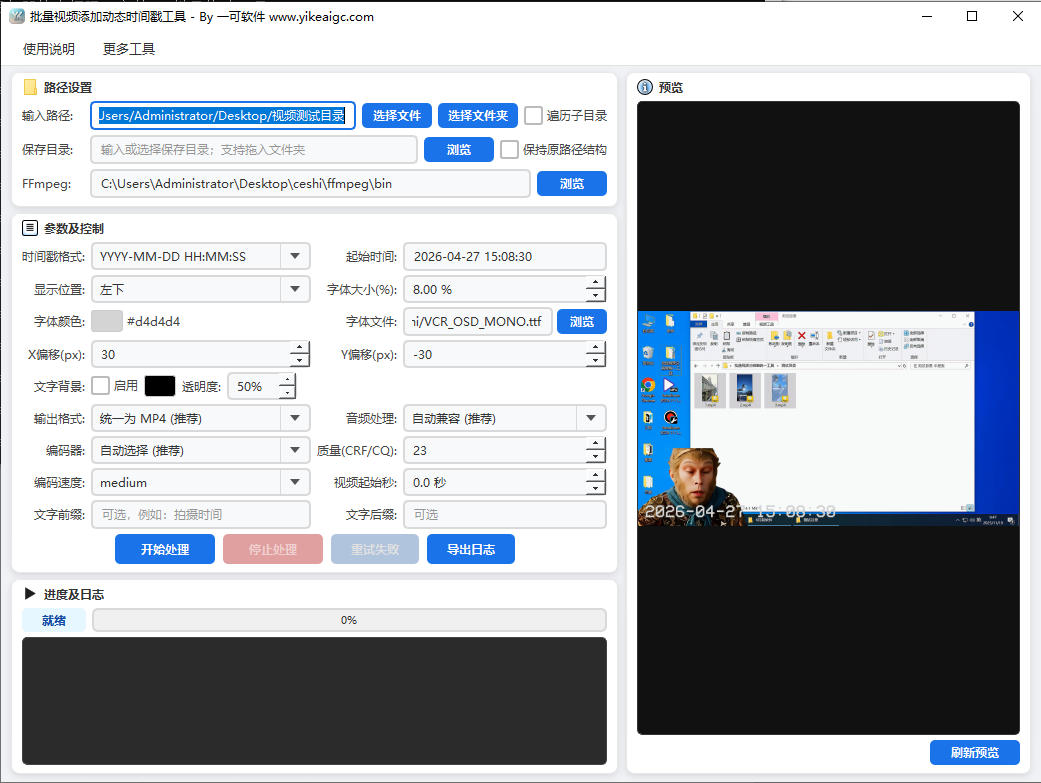
- Select video files: Enter the path to a video file or folder in the “Input Path” box. Separate multiple paths with semicolons (;). You can also click the “Select File” or “Select Folder” button to browse and choose, or drag files/folders directly into the input box. Check “Traverse Subdirectories” to recursively process videos in all subfolders. Common video formats such as MP4, AVI, MKV, MOV, WMV, FLV, and WebM are supported.
- Select save directory: Enter or browse to choose the output directory in the “Save Directory” box; drag-and-drop is supported. Check “Keep Original Path Structure” to preserve the source file’s directory hierarchy.
- Set timestamp parameters:
- Timestamp format: Select the time format to display, such as YYYY-MM-DD HH:MM:SS, HH:MM:SS, YYYY年MM月DD日 HH:MM:SS, etc.
- Start time: Set the starting time of the timestamp. The time will dynamically increase during video playback.
- Video start second: Set the second of the video from which the timestamp starts to appear. 0 means starting from the beginning.
- Display position: Select the position of the timestamp in the video frame (top left, top right, bottom left, bottom right, top center, bottom center, center), and fine-tune it with X/Y offsets.
- Font settings: Adjust the font size ratio (as a percentage of video height), choose the font color, and select a custom font file (.ttf/.otf).
- Background settings: Enable a text background box, set the background color and transparency, and improve timestamp readability.
- Prefix/suffix text: Add custom text before or after the timestamp.
- Configure encoding and output options:
- Output format: Choose to standardize as MP4 (recommended), keep the original format, MKV, MOV, WebM, or AVI.
- Video encoder: Supports auto selection, libx264 (H.264), libx265 (H.265), and NVIDIA, Intel, and AMD hardware-accelerated encoding.
- Audio processing: Supports auto compatibility, copying original audio, converting to AAC if copying fails, converting to AAC, converting to Opus, and removing audio.
- Quality CRF/CQ: The lower the value, the higher the image quality. Recommended: 18–28.
- Preview and process: Click “Preview Screenshot” to check the timestamp position and style in advance. After confirming everything is correct, click “Start Processing,” and the tool will automatically add dynamic timestamps to all videos in batch. You can click “Stop Processing” at any time to interrupt the process.
- View results: The task list will show the processing status and progress of each video. After processing is complete, you can “Retry Failed” files or “Export Log” to view detailed records.
FAQ
Related Tools
Batch Video Subtitle Adding Tool
A desktop tool for batch adding subtitles to MP4 videos. ...
Batch Video Picture-in-Picture Compositing Tool
Automatically pair main videos and picture-in-picture ass...
Batch Video Volume Adjustment Tool
Batch adjust video and audio volume, supporting multiplie...
Batch Video Volume Reduction Tool
Batch remove audio from videos or adjust volume. Supports...
Video and Audio Parameter Report Export Tool
Read audio and video codec, bitrate, frame rate, sample r...
Scrolling Text and Image Scrolling Animation Generator
Create scrolling text or image animations, with preview a...