
Batch Video Color Grading Tool
Batch adjust video brightness, contrast, saturation, and color temperature. Supports one-click application of various filter style presets to quickly unify the color tone of your videos.
Loading tool, please wait...
If the online tool fails to load or run, try the desktop tool.https://tools.yikeaigc.com/
Tool Usage
Return to old versionBatch Video Color Grading Tool(Software Version)
Video frame decoding, color processing, and batch encoding require significant computing resources. To ensure a stable, smooth color grading experience, this feature is available only in the Windows desktop client.
Instructions
Software Usage Instructions
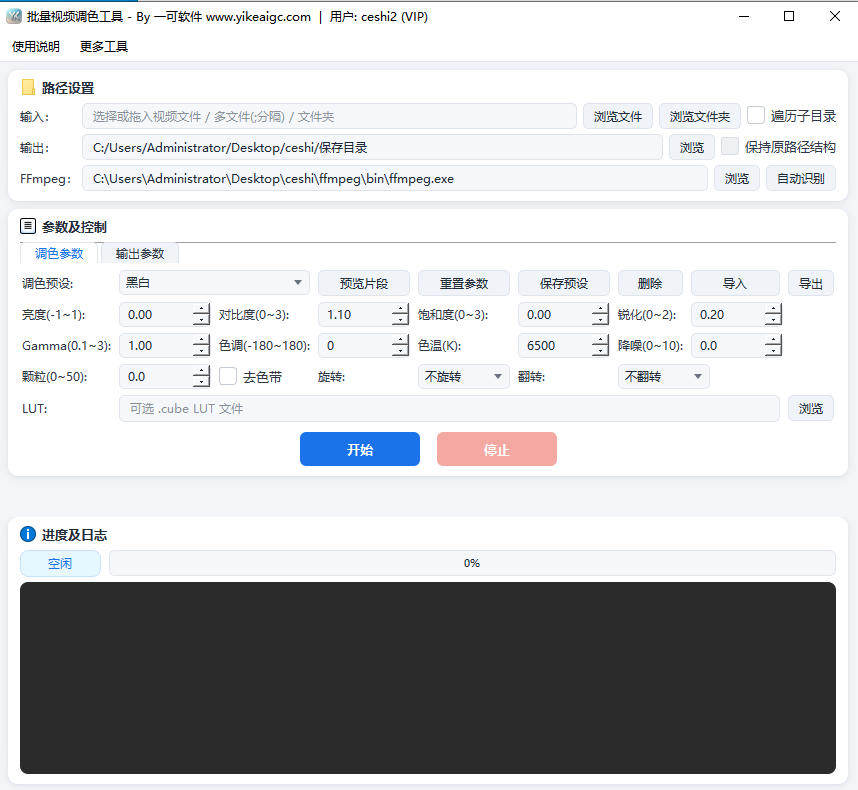
- Import video files: Click the "Add Video" button and select the video files you want to color grade. Common formats such as MP4, MOV, AVI, MKV, and FLV are supported, and multiple videos can be added in batch at once.
- Select a color grading mode:
- Parameter adjustment mode: Manually adjust parameters such as brightness, contrast, saturation, color temperature, tint, gamma, and sharpness
- Filter preset mode: Choose from the built-in filter library and apply styles such as cinematic, vintage, fresh, warm, and cool with one click
- LUT import mode: Supports loading .cube LUT files to apply professional color grading solutions
- Preview effects in real time: Compare the original image with the color-graded result in the preview window, drag the timeline to view the color performance of different segments, and confirm the effect before batch processing.
- Set output parameters:
- Output format: Select output containers such as MP4, MOV, and MKV
- Encoding and bitrate: Supports H.264 and H.265 encoding, with adjustable bitrate to balance image quality and file size as needed
- Resolution and frame rate: Keep the original video parameters or customize the output size
- Output directory: Specify the save path for the processed videos
- Start batch processing: Click the "Start Color Grading" button, and the tool will process all videos one by one according to the set parameters. The progress bar shows the processing status.
- View processing results: After processing is complete, you can view all color-graded video files in the output directory, with support for directly opening the folder location.
FAQ
Related Tools
Video and Audio Parameter Report Export Tool
Read audio and video codec, bitrate, frame rate, sample r...
Batch Video Subtitle Adding Tool
A desktop tool for batch adding subtitles to MP4 videos. ...
Batch Video Volume Adjustment Tool
Batch adjust video and audio volume, supporting multiplie...
Batch Video Subtitle Removal Tool
Batch remove hardcoded subtitles from videos with an AI m...
Pexels Stock Video Batch Downloader
A Pexels video bulk downloader designed for self-media cr...
Batch Video Resolution Standardization Tool
A practical tool for locally batch-changing video resolut...
Bulk Video and Audio Transcription Tool
Batch transcribe video and audio files offline into text,...
Batch Video and Audio Prohibited Words Detection
Batch-identify local audio and video content, automatical...