
Batch Video Subtitle Removal Tool
Batch remove hardcoded subtitles from videos with an AI model, intelligently restore the image, and support GPU-accelerated processing.
Loading tool, please wait...
If the online tool fails to load or run, try the desktop tool.https://tools.yikeaigc.com/
Tool Usage
Return to old versionBatch Video Subtitle Remover(Software Version)
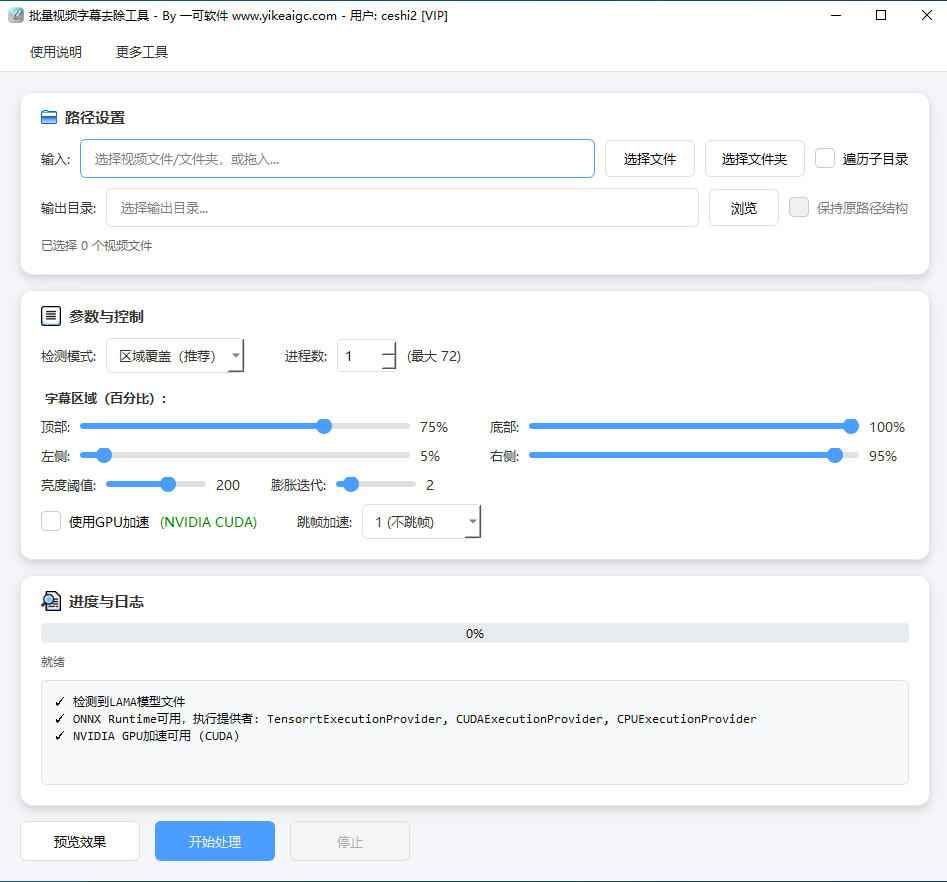
A video subtitle remover based on the LAMA AI model. Uses smart inpainting to batch process videos, automatically detect and remove hard subtitle areas, with GPU acceleration and multi-process parallel processing.
Instructions
Software Usage Instructions
- Select input files: Click "Choose File" to select one or more video files, or click "Select Folder" to choose a folder containing videos. You can also drag video files directly into the input box. Common video formats such as MP4, AVI, MKV, MOV, WMV, and FLV are supported.
- Set output directory: Click the "Browse" button to choose where to save the processed videos. Check "Keep original path structure" to preserve the original folder hierarchy in the output directory.
- Adjust subtitle area:
- Top/Bottom: Set the vertical range of the subtitle area (percentage). For example, bottom subtitles are usually set to Top 75% and Bottom 100%.
- Left/Right: Set the horizontal range of the subtitle area (percentage). Usually set Left 5% and Right 95%.
- Select detection mode:
- Area coverage (recommended): Directly repairs all content within the specified area, suitable for videos with fixed subtitle positions.
- Threshold detection: Detects subtitle text based on brightness thresholds, suitable for white subtitles.
- Adaptive detection: Automatically adapts subtitle detection to different backgrounds, suitable for complex scenes.
- Configure processing options:
- Number of processes: For batch processing, you can enable multi-process parallel processing. Recommended setting: 2–4.
- GPU acceleration: Check this option when you have a dedicated graphics card to greatly improve processing speed.
- Frame skipping acceleration: The higher the value, the faster the speed, but slight flickering may occur.
- Preview effect: Click the "Preview Effect" button to view the subtitle removal effect with the current settings and confirm that the area is set correctly.
- Start processing: After confirming that the settings are correct, click the "Start Processing" button, and the software will automatically batch-process all video files.
FAQ
Related Tools
Bulk Video and Audio Transcription Tool
Batch transcribe video and audio files offline into text,...
Batch Video Dynamic Timestamp Tool
Batch add dynamically increasing timestamp watermarks to ...
Pexels Stock Video Batch Downloader
A Pexels video bulk downloader designed for self-media cr...
Batch Old Video Restoration Tool
This tool supports batch video quality restoration, offer...
Batch Soft Subtitle Muxing Tool
Batch mux SRT, ASS, and other subtitles into MP4 or MKV w...
Batch Video Resolution Standardization Tool
A practical tool for locally batch-changing video resolut...