Batch Video Picture-in-Picture Compositing Tool
Automatically pair main videos and picture-in-picture assets by file name, batch overlay and compose picture-in-picture videos, with support for position scaling, green screen keying, text overlays, and fade-in/fade-out.
Loading tool, please wait...
If the online tool fails to load or run, try the desktop tool.https://tools.yikeaigc.com/
Tool Usage
Return to old versionBatch Video Picture-in-Picture Tool(Software Version)
Video picture-in-picture processing requires decoding, scaling, overlaying, and re-encoding, which uses significant computing resources. For a more stable and efficient batch processing experience, this feature is available only in the Windows desktop client.
Instructions
Software Usage Instructions
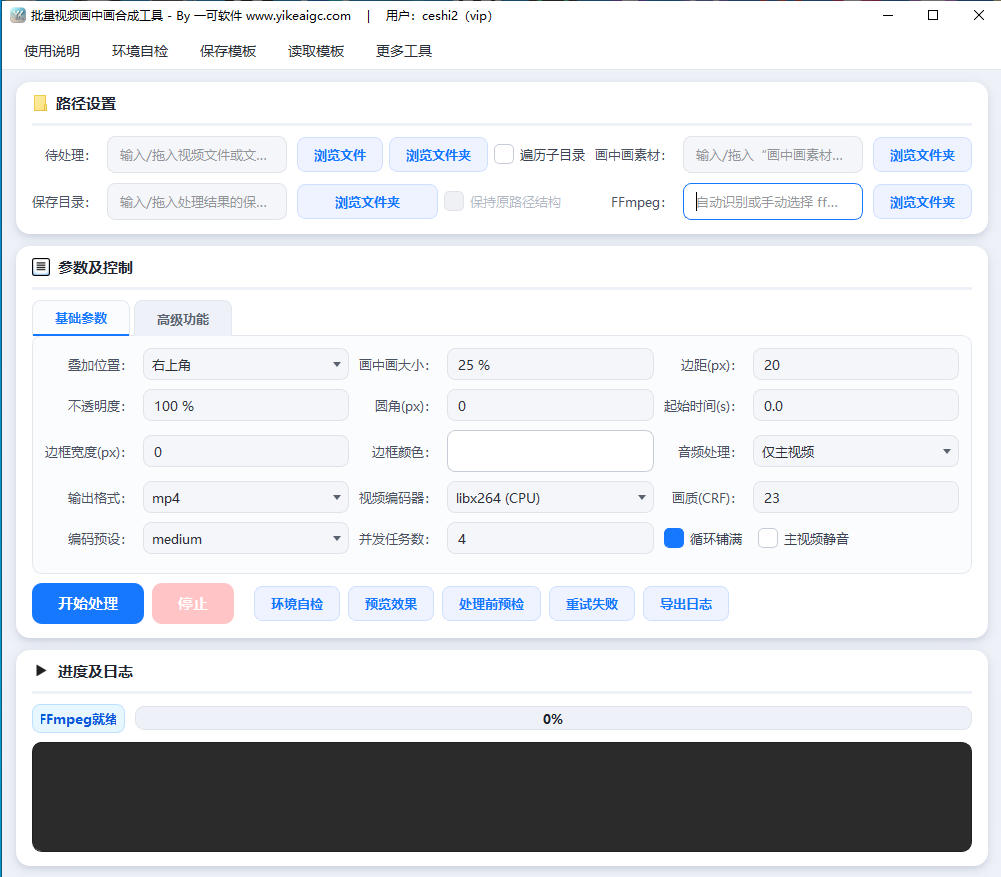
- Select the main video to process: Click the "Browse Files" or "Browse Folder" button to select the main video that needs a picture-in-picture overlay. You can select a single video, multiple videos, or a folder, or drag files in directly. Separate multiple paths with English semicolons (;). Check "Traverse Subdirectories" to process videos at all levels within the selected folder.
- Select the picture-in-picture asset folder: Here you need to select a "folder", not a single asset file. Place picture-in-picture assets with the same names as the main videos in the folder. Assets can be videos or images (PNG/JPG, etc.); transparent PNG backgrounds will be preserved.
- Set the save directory: Select the output folder for the processed results. It is recommended to use an empty folder to avoid confusion with existing files.
- Configure basic parameters:
- Picture-in-picture position: Position using nine-grid keywords, such as top right, center, bottom left, etc.
- Scale ratio and margins: Set the picture-in-picture scaling percentage relative to the main video width and the margin pixels
- Opacity, rounded corners, and border: Adjust the picture-in-picture opacity, rounded-corner cropping, and border width and color
- Output format and encoding: Select formats such as MP4, MOV, WebM, as well as the encoder and quality level
- Set advanced features (optional):
- Green screen keying: Remove the solid-color background from the picture-in-picture asset
- Text title overlay: Add a course title, instructor name, or descriptive text
- Fade in and fade out: Make the picture-in-picture window enter and exit more naturally
- Volume and smart ducking: Adjust the volumes of the main video and picture-in-picture; when the picture-in-picture has audio, the background audio of the main video is automatically lowered
- Pre-check and preview: Click "Pre-check Before Processing" to confirm the number of matched pairs and skipped items, and click "Preview Effect" to view styles such as position, size, rounded corners, and border.
- Start processing: After confirming everything is correct, click the start button. The tool will process all successfully matched videos concurrently with multiple tasks, and the progress bar and real-time log will display the processing status simultaneously.
FAQ
Related Tools
Batch Video and Audio Prohibited Words Detection
Batch-identify local audio and video content, automatical...
Batch Video Shot Segmentation Tool
Intelligently detects video scene changes and automatical...
Bulk Video and Audio Transcription Tool
Batch transcribe video and audio files offline into text,...
Batch Video Dynamic Timestamp Tool
Batch add dynamically increasing timestamp watermarks to ...
Batch Video Duration Spoofing Tool
Batch edit video metadata duration information, supportin...