Batch Video Black Border Remover
Automatically detects black borders at the top, bottom, left, and right of videos and crops them precisely. Supports batch import of multiple videos for one-click processing and export.
Loading tool, please wait...
If the online tool fails to load or run, try the desktop tool.https://tools.yikeaigc.com/
Tool Usage
Return to old version
A desktop version is available with more powerful, stable features.
Open desktop version
Windows 10/11 only
Batch Video Black Bar Remover(Software Version)
Since detecting black bars and batch cropping videos requires significant computing resources, this feature is only available in the Windows desktop client for a more stable, smooth experience.
Auto-detect black bars on all sides
Batch process videos, export in one click
Processed locally; no need to upload videos to a server
Click to go to the software download page
Instructions
Software Usage Instructions
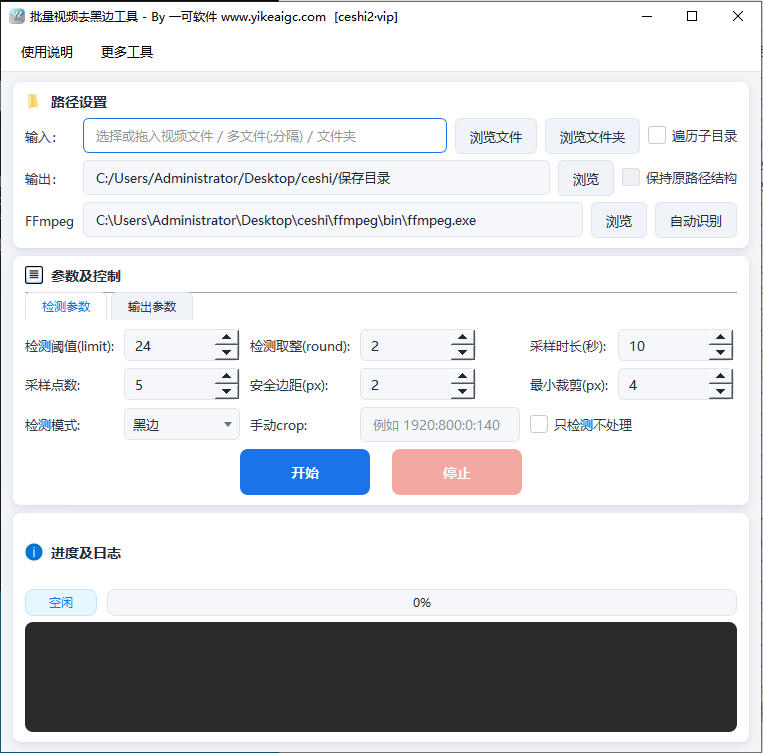
- Import video files: Click the "Add Video" or "Add Folder" button and select the video files from which you want to remove black borders. Common formats such as MP4, MOV, AVI, MKV, and FLV are supported, and multiple files can be imported in batches for one-time processing.
- Set black border detection parameters:
- Detection threshold: Adjust the grayscale threshold for black border recognition. The smaller the value, the stricter the recognition, helping distinguish dark scenes from actual black borders
- Number of sampled frames: Set how many frames to extract from the video for black border analysis. More frames produce more accurate results
- Edge tolerance: Reserve a small pixel margin for the crop area to avoid accidentally cropping image content
- Select a cropping mode:
- Auto crop: The tool automatically analyzes and crops the black border areas on the top, bottom, left, and right of each video
- Unified crop: Uses the intersection of the detection results from all videos as a unified crop value, ensuring consistent output dimensions
- Manual crop: Manually enter the number of pixels to remove from the top, bottom, left, and right for precise control
- Configure output options:
- Output format: Choose to keep the original format or convert all videos to MP4, MOV, etc.
- Output bitrate: Provides high, medium, and low bitrate presets, with custom settings also available
- Output directory: Specify the folder where the processed videos will be saved
- Preview detection results: Click the "Preview" button to view the detected crop frame for each video, and confirm everything is correct before starting the actual processing.
- Start batch processing: Click the "Start Processing" button, and the tool will crop the black borders and render the output for each video one by one, with processing progress displayed in real time in the list.
FAQ
A: The tool extracts multiple frames from the video and analyzes the continuous near-black areas around each frame based on a pixel grayscale threshold, then uses the combined results from multiple frames as the black border range. The purer the black area, the more accurate the recognition. For dark scenes, it is recommended to lower the threshold appropriately or increase the number of sampled frames.
A: Auto crop calculates the black border size separately for each video, so output dimensions may vary. It is suitable for batch processing materials from diverse sources. Unified crop combines the detection results of all videos so that output videos maintain the same dimensions, making subsequent stitching, merging, or unified publishing easier.
A: The tool supports common video container formats such as MP4, MOV, AVI, MKV, FLV, WMV, WebM, and TS. Internal codecs are compatible with mainstream codecs such as H.264, H.265, and VP9, meeting the processing needs of most short videos, film and TV materials, and surveillance footage.
A: Removing black bars essentially crops the effective image area and does not enlarge the image content, so clarity remains basically the same as the source video. The audio track is preserved as is by default and will not be re-encoded. If you choose a custom bitrate or format conversion, the video track will be recompressed according to the settings.
A: When a video contains fade-in or fade-out black frames at the beginning or end, or when the overall image is dark, automatic detection may be too large. Suggestions: 1) increase the number of sampled frames so detection avoids black frames at the beginning and end; 2) lower the grayscale threshold; 3) use "manual crop" mode to enter precise top, bottom, left, and right pixel values; 4) process problematic videos individually.
A: Video rendering is a high-load task. Suggestions: 1) process in batches and keep each task within a few dozen videos; 2) close other programs that use memory and the GPU; 3) set the output directory to a disk with sufficient free space; 4) appropriately reduce the output bitrate and resolution to ease hardware pressure.
A: After removing the black borders, the video resolution will be reduced accordingly. The output width and height will equal the original resolution minus the pixels cropped from the black borders. If you want to keep the original resolution, you can enable "Scale back to original size" in the output options. The tool will enlarge the image back to the original width and height after cropping, or you can customize the target resolution for consistent output.
Related Tools
Batch Video and Audio Prohibited Words Detection
Batch-identify local audio and video content, automatical...
Bulk Video and Audio Transcription Tool
Batch transcribe video and audio files offline into text,...
Batch Video Volume Adjustment Tool
Batch adjust video and audio volume, supporting multiplie...
Batch Video Duplicate Removal Tool
Batch process video materials, supporting multiple dedupl...