Batch Image Black Border Remover
Batch-detect and crop black borders, white borders, and custom solid-color borders from images, with support for recursive folders and multithreaded processing.
Loading tool, please wait...
If the online tool fails to load or run, try the desktop tool.https://tools.yikeaigc.com/
Tool Usage
Return to old version
A desktop version is available with more powerful, stable features.
Open desktop version
Windows 10/11 only
Batch Image Border Remover(Software Version)
Image border detection and batch cropping require significant computing resources. To provide a more stable and efficient experience, this feature is available only in the Windows desktop client.
Auto-detect black, white, and custom solid-color borders
Multi-threaded batch cropping with recursive folder support
Local processing, no image upload required
Click to go to the software download page
Instructions
Software Usage Instructions
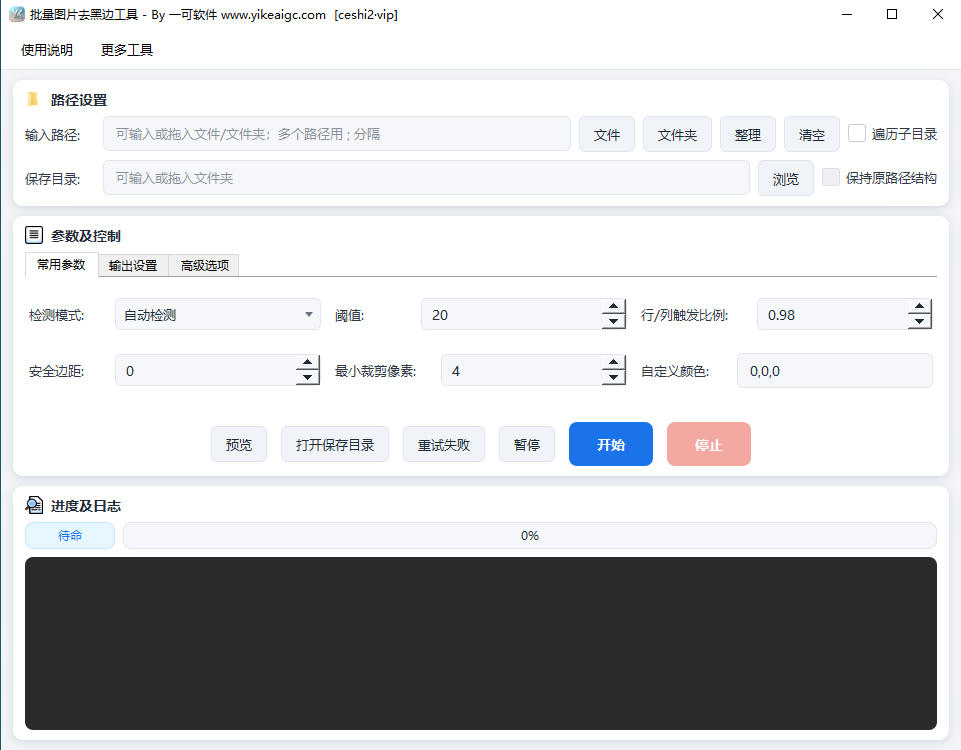
- Select input images: Enter a path in the input box, click the "Browse Files" or "Browse Folder" button to select the images to process, or drag files or folders directly into the input box. Single files, multiple files, and entire folders are supported. Separate multiple paths with semicolons (;).
- Traverse subdirectories: When enabled, the tool will recursively search for image files at all levels under the main folder. When used with "Keep original path structure", output files will be saved using the same directory hierarchy as the input.
- Set the save directory: Enter a path in the input box, click "Browse", or drag in a folder to specify the output location, and set how duplicate names are handled: auto rename, skip, or overwrite.
- Select detection mode:
- Auto detection: Attempts both black borders and white borders, then chooses the result with the more significant crop
- Smart detection (any border color): Detects borders with any solid color or slight gradient, such as gray, red, or blue
- Black border / White border: Detects borders of a single color
- Solid-color border (custom): Detects based on the color specified by R,G,B
- Adjust detection parameters: Set the threshold (0-255), row/column trigger ratio, safe margin, minimum crop pixels, fixed crop pixels, and crop sides (top, bottom, left, right) as needed to make the cropping results better match expectations.
- Configure output options: Choose to keep the original format or convert to JPG/PNG/WEBP/BMP/TIFF/GIF, and set the quality, compression level, transparent background fill color, concurrency, and whether to preserve metadata.
- Preview and process: You can click Preview first to view the result for a single image. After confirming, click "Start" to process in batches. During processing, pause, resume, and stop are supported, and failed files can be retried individually after completion.
FAQ
A: Auto detection tries black borders and white borders separately, then chooses the result that crops more, making it suitable for common images with black or white borders. Smart detection (any border color) judges based on the solid-color characteristics of the four edges themselves, and can detect borders in any color such as gray, red, or blue, and even slight gradients.
A: Threshold indicates the maximum allowed difference between a pixel and the target border color. The larger the value, the more lenient the detection, allowing borders with noise or impure colors to be removed. Row/column trigger ratio indicates what proportion of pixels in a row or column must meet the condition for it to count as an "edge". If the border contains mixed colors, you can increase the threshold appropriately; if you are concerned about accidentally cropping content, increase the trigger ratio.
A: Safety margin expands the detected crop boundary outward by a certain number of pixels or percentage to avoid cutting off valid content; Minimum crop pixels sets a lower limit. If the detected edge is smaller than this value, no cropping is performed, avoiding unnecessary re-encoding of images with almost no border.
A: No. This tool is a Windows desktop client. All detection and cropping are completed on your local device, and image files are not uploaded to any server, helping to protect your privacy and data security.
A: Yes. For multi-frame GIF and animated WEBP files, the tool first calculates a safe crop area based on the union of all frames, then crops each frame and writes it back, while preserving the original playback duration, loop count, and transparency parameters as much as possible.
A: It supports reading common formats such as JPG, JPEG, PNG, BMP, WEBP, TIFF, GIF, TGA, and ICO. When outputting, you can keep the original format or convert to any of JPG, PNG, WEBP, BMP, TIFF, or GIF.
A: You can appropriately increase the concurrency count (recommended 2-8) to speed up batch processing. When handling very large images, enable "Fast detection for large images"; the tool will first downscale the image before detecting the boundary to reduce memory usage. When processing a huge number of files, you can also split them into batches to make the overall process smoother.
Related Tools
Random Image EXIF Information Adder
Batch-generate and write real EXIF metadata for images, s...
Batch Image Top/Bottom Text Tool
Add custom text to the top or bottom of images in bulk, w...