Batch Image Grid Splitter
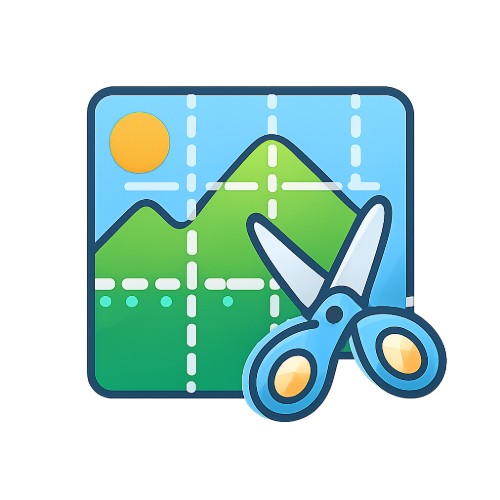
Batch split images into 3x3 grids, 4x4 grids, custom grids, or long image strips, with support for multithreaded acceleration, number overlays, and uniform size output.
Loading tool, please wait...
If the online tool fails to load or run, try the desktop tool.https://tools.yikeaigc.com/
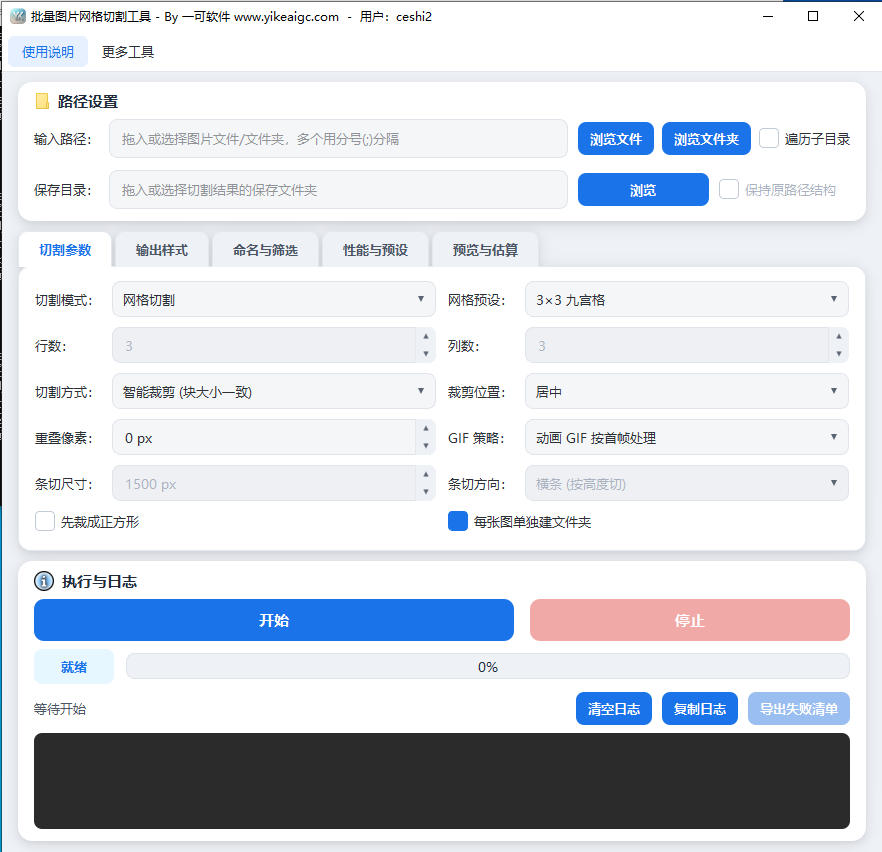
Tool Usage
Return to old versionBatch Image Grid Splitter(Software Version)
Grid splitting and long image slicing require high-speed batch processing. For a more stable and smooth experience, this feature is available only in the Windows desktop client.
Instructions
Software Instructions
- Select input images: Click "Browse Files" to select one or more images, or click "Browse Folder" to select an entire directory. You can also drag files/folders directly into the window. Check "Include subdirectories" to search for images at all levels.
- Set the save directory: Enter, browse for, or drag in the location where the sliced results will be saved. After enabling "Preserve original path structure," the output will replicate the source folder hierarchy, and numbers will be automatically appended to files with the same name to avoid overwriting.
- Select a slicing mode:
- Grid slicing: Split the image into a row × column grid. You can choose presets such as 3×3 or 4×4 with one click, or customize the number of rows and columns.
- Long image strip slicing: Split a long image into continuous strips by fixed height (horizontal strips) or fixed width (vertical strips), ideal for long graphic posts and webtoons.
- Configure the slicing method:
- Smart crop: Crops excess pixels from the edges so each piece is exactly the same size. Recommended for 9-grid images.
- Direct slicing: Slices proportionally without losing pixels; edge pieces may differ by 1 pixel.
- Crop to square first: Crops the image into a square before slicing, with an option to choose which side of the image to keep.
- Overlap pixels: Expands adjacent slices outward by the specified number of pixels to create overlap.
- Set the output style: You can enable a uniform output size and choose platform presets such as 1080×1080 or 1080×1440, set spacing gaps between slices, add colored borders, and overlay a posting number in the corner of each slice.
- Select an acceleration engine: Multithreading starts quickly, while multiprocessing is suitable for CPU-intensive large batch tasks. The recommended parallel count is close to the number of CPU cores.
- Start processing: Click the "Start" button, and the tool will automatically scan and slice all images. You can click "Stop" at any time during processing to interrupt it.
- View results: During processing, you can view the grid effect and estimated output count in the preview area. After completion, you can open the output directory with one click to view all slices.
FAQ
Related Tools
Batch Image Text Insertion Tool
Automatically read photo EXIF data (shooting date, camera...
Batch PDF Multi-Page Merge Tool
Merge multiple pages of a PDF file onto one page for easy...
Corrupted Image Detection and Filtering Tool
Batch check whether images are corrupted, supports multip...
Xiaohongshu Emoji Text Cover Maker
Create handwritten-style covers with emoji and highlight ...
Photo Border Watermark Generator
Add borders and custom text watermarks to photos online, ...
Xiaohongshu Sticky Note Style Cover Maker
Sticky note–style cover with a kraft paper background and...
PNG Compression Optimization Tool
Batch compress PNG images online, supporting color reduct...