
Batch Video Metadata Cleaning and Editing Tool
Batch remove metadata such as video recording device, GPS, and creation time, and batch write information such as title, author, and copyright.
Loading tool, please wait...
If the online tool fails to load or run, try the desktop tool.https://tools.yikeaigc.com/
Tool Usage
Return to old version
A desktop version is available with more powerful, stable features.
Open desktop version
Windows 10/11 only
Batch Video Metadata Cleaner & Editor(Software Version)
Batch reading, clearing, and writing of video metadata requires a local decoding engine to process large files. For a more stable and efficient experience, this feature is available only in the Windows desktop client.
Batch clear camera, GPS, creation time, and more
Batch write title, author, copyright, and other fields
Supports folder recursion and original structure retention
Multithreaded concurrent processing for large batches
Click to go to the software download page
Instructions
Software Usage Instructions
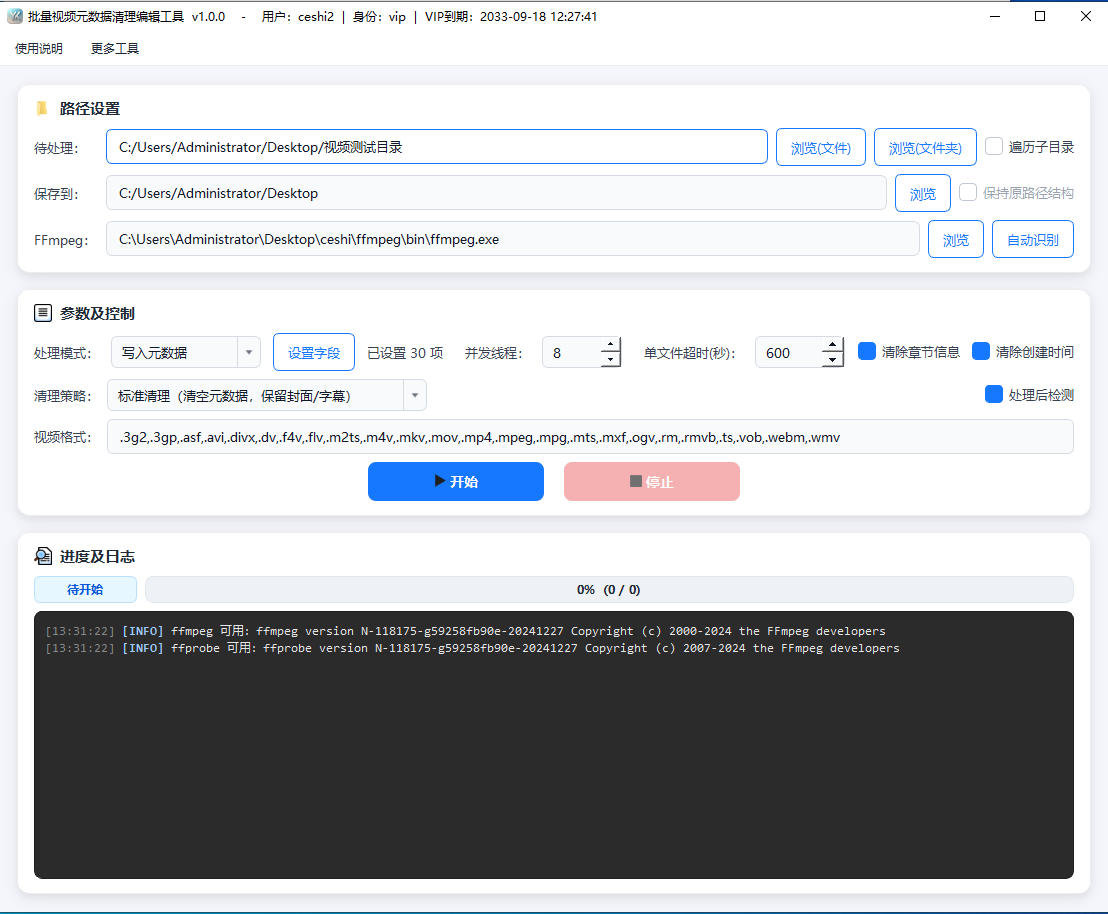
- Import video files: Click the "Browse" button or drag video files or folders directly into the input box. Supports batch import of a single file, multiple files, or an entire folder. Compatible with mainstream video formats such as MP4, MOV, MKV, AVI, WMV, FLV, and WebM.
- Select a processing mode:
- Clear metadata mode: Batch remove privacy and redundant information from videos, such as camera device model, GPS location, creation time, and encoding software.
- Write metadata mode: Batch write content fields to videos, such as title, subtitle, author, artist, album, copyright, comments, and keywords.
- Configure metadata fields: In write mode, fill in fields such as title, author, copyright, creation date, rating, and type as needed. Supports assigning the same values to an entire batch of videos.
- Set processing options:
- Recursive subdirectories: When enabled, all video files at every level under the folder will be scanned.
- Preserve original path structure: Output files are saved according to the source folder directory hierarchy.
- Clear creation time: Separately control whether to also remove the media creation date.
- Concurrent threads: Adjust based on device performance to improve processing speed for large batch tasks.
- Select output directory: Specify where the processed videos will be saved. Duplicate file names will automatically have a number appended to avoid overwriting the original files.
- Start processing: Click the "Start Processing" button, and the tool will batch process videos using multiple threads. The interface displays the progress bar and processing log in real time, and you can stop the task at any time.
FAQ
A: No. The tool only clears or edits the video's metadata and processes audio and video tracks using stream copy without re-encoding, so the image and sound quality remain unchanged, and processing is also faster.
A: Clearing metadata is used to remove privacy and redundant information from videos, such as shooting device, GPS location, and creation time; writing metadata is used to batch add content fields to videos, such as title, author, copyright, and comments. The two modes can be used separately to meet both cleanup and tagging needs.
A: It supports many common video formats, including MP4, M4V, MOV, MKV, AVI, WMV, FLV, WebM, MPEG, TS, 3GP, VOB, and MXF, covering various video files recorded on phones, shot with cameras, or downloaded from the web.
A: The tool uses multithreaded concurrency and streaming file scanning, outputting files to be processed one by one instead of loading them all into memory at once, so it can handle thousands of video tasks. You can adjust the number of concurrent threads based on your device's CPU cores to balance processing speed and resource usage.
A: No. The processed results will be saved to the output directory you specify, and the original video files will remain unchanged. If a file with the same name already exists in the output directory, the tool will automatically append a number to the filename to avoid accidental overwriting.
A: Subdirectory recursion scans video files at all levels under the selected folder, making it suitable for organizing media libraries with multiple directory levels. Preserving the original path structure saves output files according to the source folder's directory hierarchy, so they can still correspond to the original classification and management structure after processing.
A: Possible reasons include: the video file itself is corrupted, the format container is nonstandard, the file is being used by another program, or there is insufficient remaining disk space. We recommend confirming that the file can play normally, closing any program using the file, and reserving enough output disk space before processing it again.
Related Tools
Bulk Video and Audio Transcription Tool
Batch transcribe video and audio files offline into text,...
Batch Video Duration Spoofing Tool
Batch edit video metadata duration information, supportin...
Batch Video Dynamic Timestamp Tool
Batch add dynamically increasing timestamp watermarks to ...
Batch Video Volume Adjustment Tool
Batch adjust video and audio volume, supporting multiplie...
Batch Video Duplicate Removal Tool
Batch process video materials, supporting multiple dedupl...