
Batch Image Watermark Remover Tool
Based on the LaMa deep learning model, intelligently remove image watermarks in batches, supporting 9 position options and local processing to protect privacy.
Loading tool, please wait...
If the online tool fails to load or run, try the desktop tool.https://tools.yikeaigc.com/
Tool Usage
Return to old version
A desktop version is available with more powerful, stable features.
Open desktop version
Windows 10/11 only
Batch Image Watermark Remover(Software Version)
Powered by the LaMa deep learning model, it intelligently detects and removes watermarks from images. Supports batch processing, automatically repairs watermark areas, and restores the original look.
LaMa deep learning model, smart watermark area repair
Batch processing, remove watermarks from multiple images in one click
9 watermark positions for precise area selection
Local processing, privacy protected, no image upload needed
Click to go to the software download page
Instructions
Software Usage Instructions
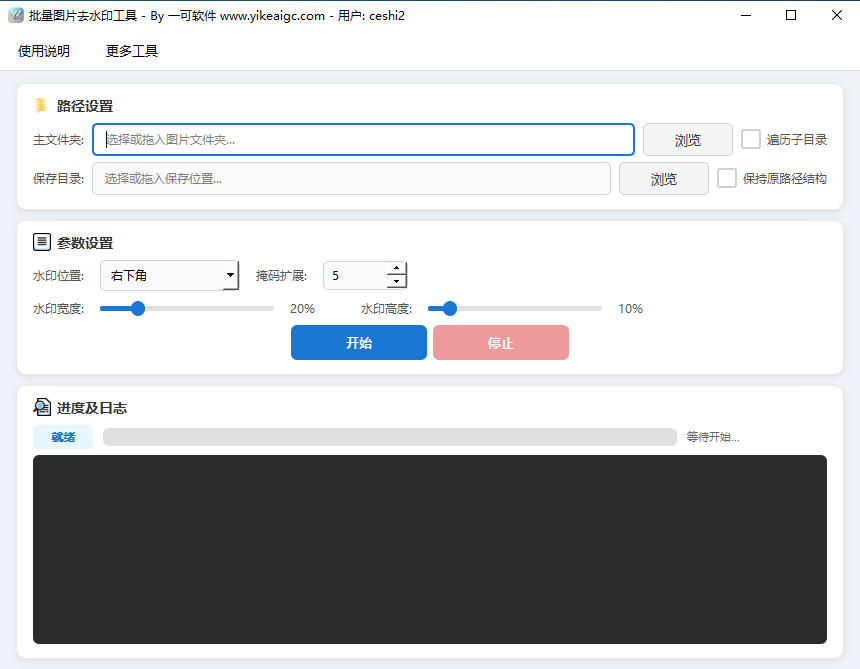
- Select the main folder: Click the "Browse" button or drag in the folder containing images. Common image formats such as PNG, JPG, JPEG, BMP, WEBP, and TIFF are supported.
- Select the save directory: Click the "Browse" button or drag in the save location. The processed images will be saved to this directory. Note: The save directory cannot be the same as the main folder.
- Set path options:
- Traverse subdirectories: When checked, images in the main folder and all subfolders will be processed
- Keep original path structure: When checked, the original directory hierarchy will be preserved when saving
- Set watermark parameters:
- Watermark position: Select the position of the watermark in the image. 9 positions are supported: bottom right, bottom left, bottom center, top right, top left, top center, center, left center, and right center
- Watermark width: Set the percentage of the image width occupied by the watermark area (1%-100%)
- Watermark height: Set the percentage of the image height occupied by the watermark area (1%-100%)
- Mask expansion: Expand the mask area outward by a number of pixels (0-50) to ensure the watermark edges are fully covered
- Start processing: Click the "Start" button. The tool will use the LaMa deep learning model to automatically remove watermarks and repair the images.
- View results: After processing is complete, view the images with watermarks removed in the save directory.
FAQ
A: It is recommended to set the watermark area slightly larger than the actual watermark to ensure it is fully covered. For example, if the watermark occupies 15% of the image width and 8% of the image height, you can set the width to 20% and the height to 10%. If there are still remnants around the watermark edges, you can increase the "Mask expansion" value.
A: This tool requires the LaMa deep learning model file (lama_fp32.onnx) to run. Please make sure the model file is placed in the same directory as the program. If the downloaded compressed package contains the model file, extract it to the same directory as the program.
A: Common image formats such as PNG, JPG, JPEG, BMP, GIF, TIF, TIFF, WEBP, and JFIF are supported. Processed images will be saved in their original format. JPG files use 95% quality compression by default.
A: The LaMa model intelligently restores the watermarked area and recreates the original image as closely as possible. Non-watermarked areas are not affected. JPG files are saved with high-quality 95% compression, while lossless formats such as PNG fully retain their original quality.
A: Deep learning model processing requires some computing resources. Recommendations: 1) close other CPU-intensive programs; 2) process large numbers of images in batches; 3) if your computer has lower specs, you can appropriately reduce the watermark area to speed up processing.
A: No. All image processing is completed locally on your computer. Images are not uploaded to any server, effectively protecting your privacy and data security.
A: Watermark removal results are affected by several factors: 1) the watermark area is not set accurately, so adjust its position and size; 2) the watermark covers complex image content, making AI restoration more difficult; 3) the contrast between the watermark color and the background is low. It is recommended to test with a few images first, find suitable parameter settings, and then process in batches.
Related Tools
Batch Image Text Watermark Tool
Easily add custom text watermarks to multiple images, wit...
Random Image EXIF Information Adder
Batch-generate and write real EXIF metadata for images, s...
Xiaohongshu iPad Tablet-Style Cover Maker
Simulates an iPad tablet frame design, with support for g...
Image Deduplication Tool (Detection Bypass)
Batch image deduplication tool that makes it easy to pass...