Batch Subtitle Format Converter
Batch convert between SRT, VTT, ASS, LRC, and TXT subtitle formats, with support for timeline offsets, merge sorting, and overlap repair.
Loading tool, please wait...
If the online tool fails to load or run, try the desktop tool.https://tools.yikeaigc.com/
Tool Usage
Return to old version
A desktop version is available with more powerful, stable features.
Open desktop version
Windows 10/11 only
Batch Subtitle Format Converter(Software Version)
Batch subtitle parsing and timeline processing require stable local computing power. For a smooth, efficient conversion experience, this feature is available as a Windows desktop client.
Convert between SRT / VTT / ASS / LRC / TXT
Time shift, merge, sort, and fix overlaps
Local processing; subtitle files are not uploaded to the server
Click to go to the software download page
Instructions
Software Usage Instructions
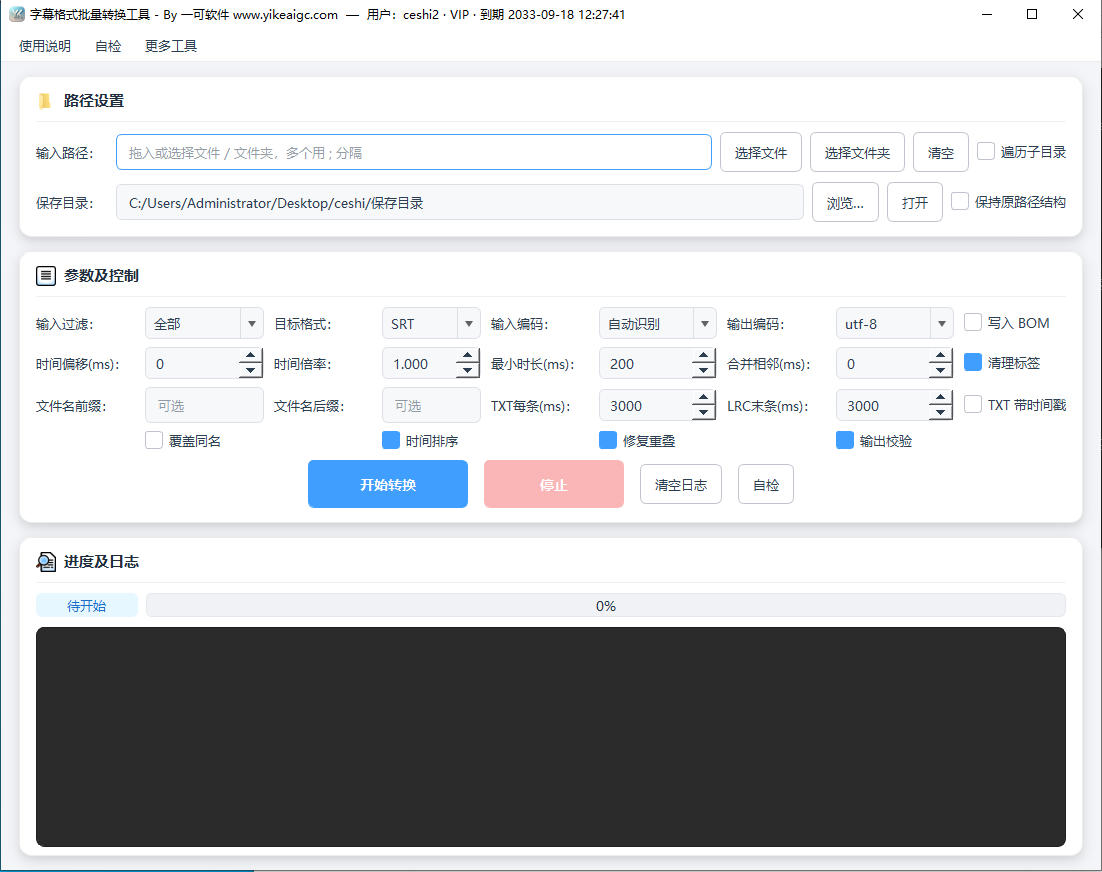
- Add subtitle files: Drag or select subtitle files in "Input Path", or select a folder directly for batch import. Separate multiple paths with an English semicolon ";". Mixed formats such as SRT, VTT, ASS, LRC, and TXT are supported.
- Set the scan range:
- Traverse subdirectories: When checked, the tool will recursively search for subtitle files at all levels within the folder
- Keep original path structure: Available when "Traverse subdirectories" is checked; the source directory structure will be replicated in the output directory
- Select the save directory: Specify where the converted files will be saved. If a file with the same name exists, numbers such as _1 and _2 will be automatically appended to the end of the file name to distinguish them.
- Select the target format and encoding:
- Target format: Can output as SRT, VTT, ASS, LRC, or TXT
- Encoding settings: The default output encoding is UTF-8. Input encoding can be detected automatically or specified manually, and you can choose whether to add a BOM
- Adjust timeline options (optional): Set parameters such as time offset, time multiplier, minimum duration padding, adjacent subtitle merging, time sorting, and overlap repair as needed.
- Start conversion: Click the "Start Conversion" button. The progress bar will show the processing progress in real time. Click "Stop" if you need to interrupt it.
- View results: After conversion is complete, you can view the processing results and messages for each file in the log window, and get the converted subtitles from the save directory.
FAQ
A: Conversion is supported among common formats including SRT, VTT, ASS/SSA, LRC, and TXT. Whether you want to convert VTT commonly used for online videos to the universal SRT format, or organize subtitles into LRC lyrics or plain text TXT, it can all be done in one go.
A: The tool automatically detects file encoding by default. If garbled text occurs due to incorrect detection, change "Input Encoding" from "Auto Detect" to a specific encoding, such as GB18030 or UTF-8, and process it again. It is also recommended to set the output encoding uniformly to UTF-8.
A: Time offset is used to shift all subtitle timings earlier or later, in milliseconds; a negative value means earlier. Time multiplier is used to scale the entire timeline proportionally, which is suitable for fixing subtitles that become increasingly out of sync due to inconsistent frame rates.
A: No. All subtitle parsing, conversion, and writing are completed locally on your device. Files are not uploaded to any server, protecting the privacy and security of your subtitle content.
A: You can choose this yourself. After checking "Clean tags", HTML tags in SRT/VTT and ASS override styles will be removed, producing clean plain-text subtitles. If unchecked, the original styled text will be preserved as much as possible.
A: LRC lyrics do not include end times, so the tool uses the start time of the next line as the end time of the previous line, and a default duration can be set for the last item. For plain TXT text, an adjustable default duration is assigned to each line (3 seconds per item by default), automatically completing the timeline.
A: Conversion runs in a background thread and will not freeze the interface. During recursive scanning, the output directory is automatically skipped. The tool uses a safe writing method that writes to a temporary file first and then replaces the original, so failure of a single file will not affect other files, and all processing results are clearly listed in the log.
Related Tools
TXT Document Content Batch Replacement Tool
Supports single-file and batch modes, allows multiple set...
Online PDF Cross-Page Seal Tool
Add a cross-page seal to PDF files online, with support f...
Markdown Editor and Batch Conversion Tool
Supports Markdown editing and preview, exports to HTML, P...
Extract Specified PDF Pages as Images
Extract specified pages from a PDF and convert them to im...
Batch Word Document Formatting Tool
Batch process Word documents, automatically identify head...